Login to the Application
This guide provides instructions for accessing the Atenxion Platform using various authentication methods. Follow the appropriate procedure based on your account type and organization's security requirements.
Standard Authentication
To log in using your registered credentials:
- Navigate to the application login page
- Enter your registered email address in the Email field
- Enter your password in the Password field
- Click the Log In button
Ensure that your credentials are entered correctly, as the system is case-sensitive for passwords.
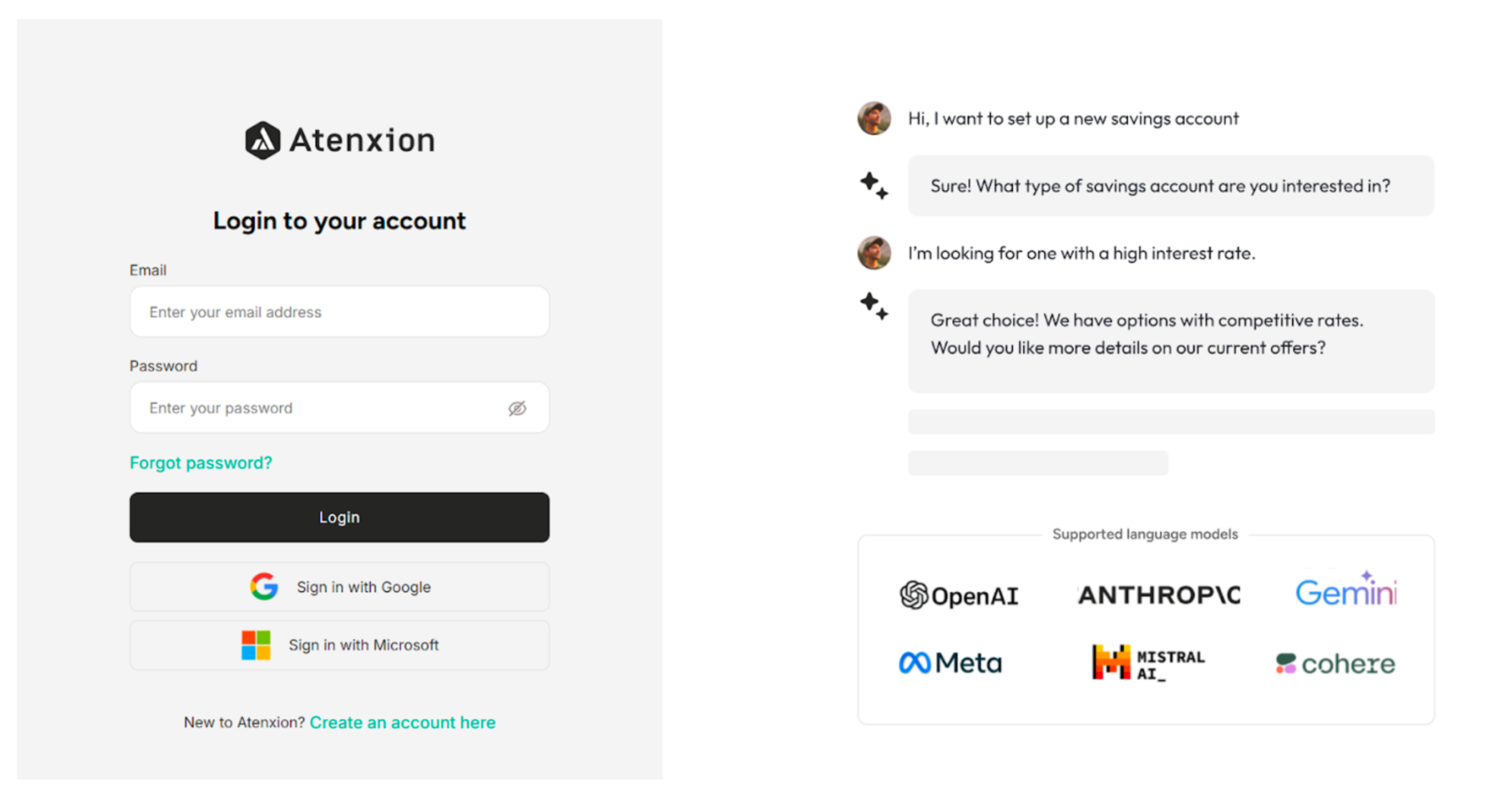 Figure: Login Page
Single Sign-On (SSO) Authentication
The platform supports integration with popular identity providers through SSO. This option offers enhanced security and simplified credential management.
Sign In with Google
If your organization uses Google Workspace, you can authenticate using your corporate Google account:
- Select the Sign in with Google option on the login page
- Choose the appropriate Gmail account from the list of available accounts
- Complete any additional authentication steps as prompted by Google
- Authorize the application to access your profile information
-c6c251465fa65f2c11bcec15558ad66a.png) Figure: Login Page with SSO Options (Google)
Figure: Login Page with SSO Options (Google)
Sign In with Microsoft
For organizations using Microsoft 365 or Azure Active Directory, you can authenticate using your corporate Microsoft account:
- Select the Sign in with Microsoft option on the login page
- Enter your corporate email address
- Complete the authentication process as directed by Microsoft
- Grant necessary permissions to the application
-12b712fa67a41cd8d0897fd79db905ab.png) Figure: Login Page with SSO Options (Microsoft)
Figure: Login Page with SSO Options (Microsoft)
Security Best Practices
- Always log out of shared or public devices
- Ensure you are accessing the official application URL
- Regularly update your password following organizational policies
- Enable two-factor authentication if available
- Be cautious of phishing attempts requesting login credentials