3. Adding Nodes into the Canvas
The Add Nodes panel allows users to build workflows by dragging and dropping different types of nodes onto the canvas. The nodes are grouped into two main categories: General and Rules.
| No. | General |
|---|---|
| 1. | AI Agent |
| 2. | Note |
| No. | Rules |
|---|---|
| 1. | Conditions |
| 2. | Looping |
| 3. | Human Input |
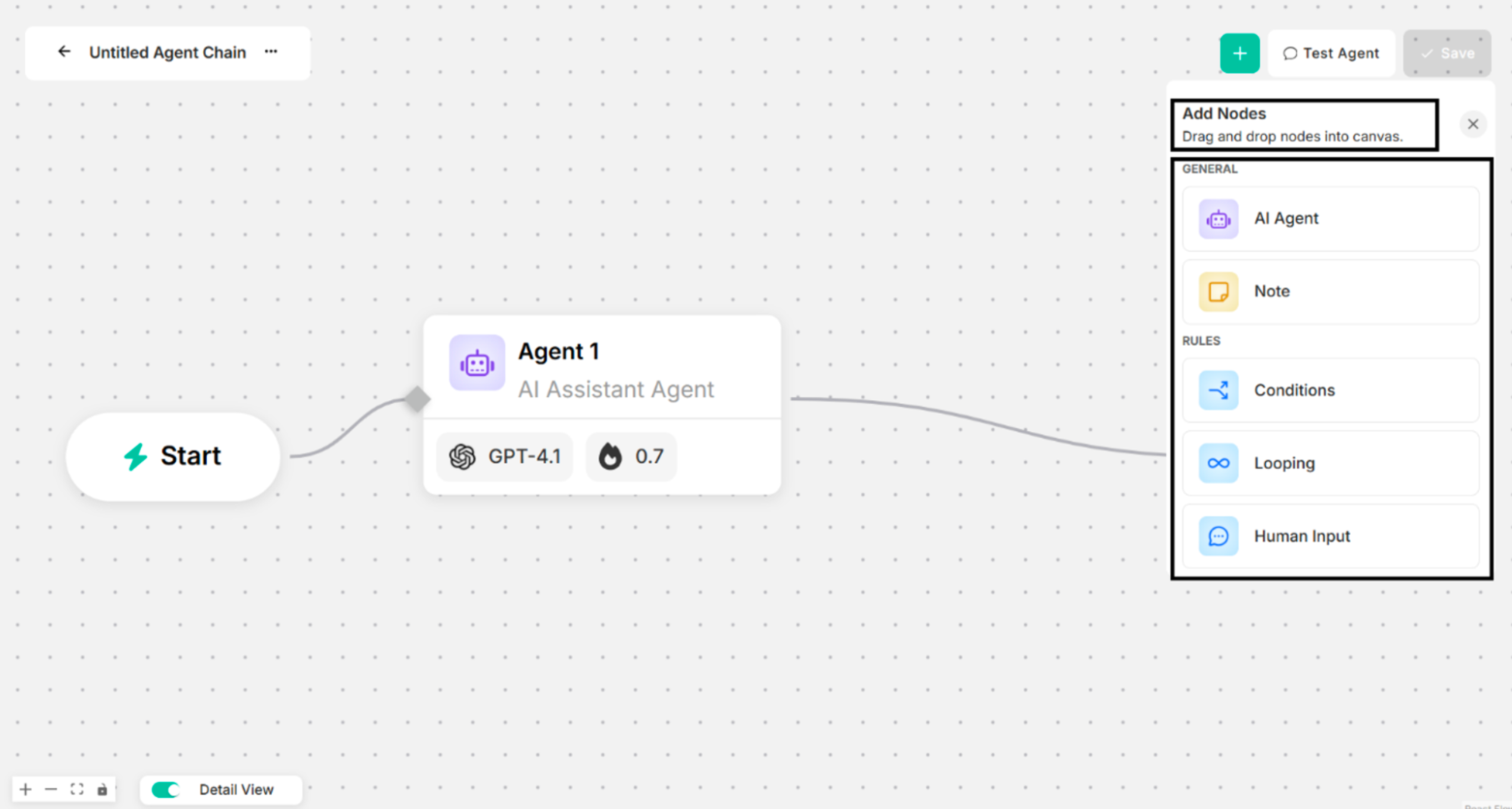 Figure: Add Nodes after clicking "Plus" Sign Button on the Canvas
3.1. Drag and drop "AI Agent" on the Canvas
The system will successfully drag and drop the AI Agent into the canvas.
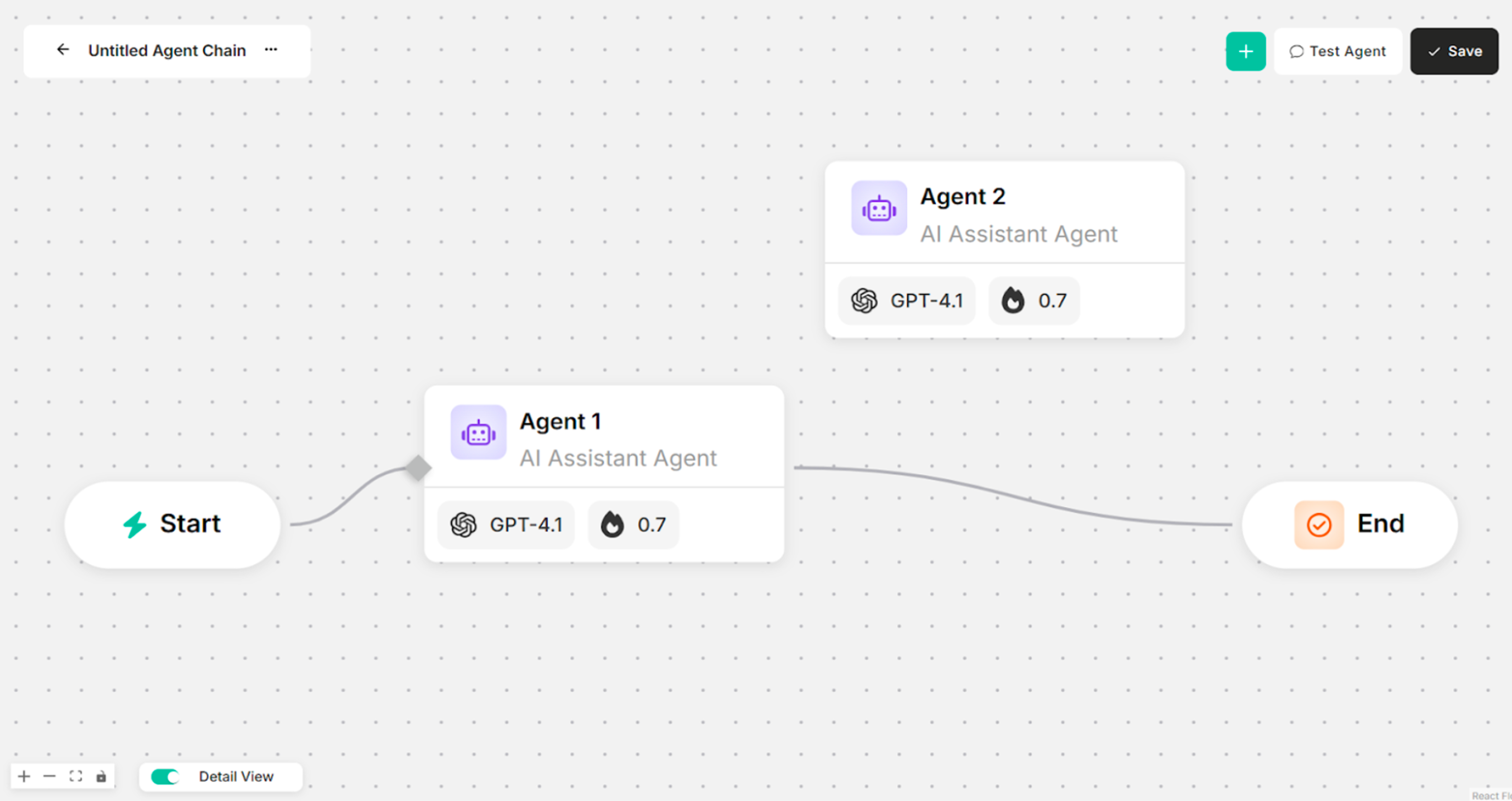 Figure: Creation Canvas after dragging and dropping AI Agent
3.2. Drag and drop "Note" on the Canvas
The system will successfully drag and drop Note into the canvas.
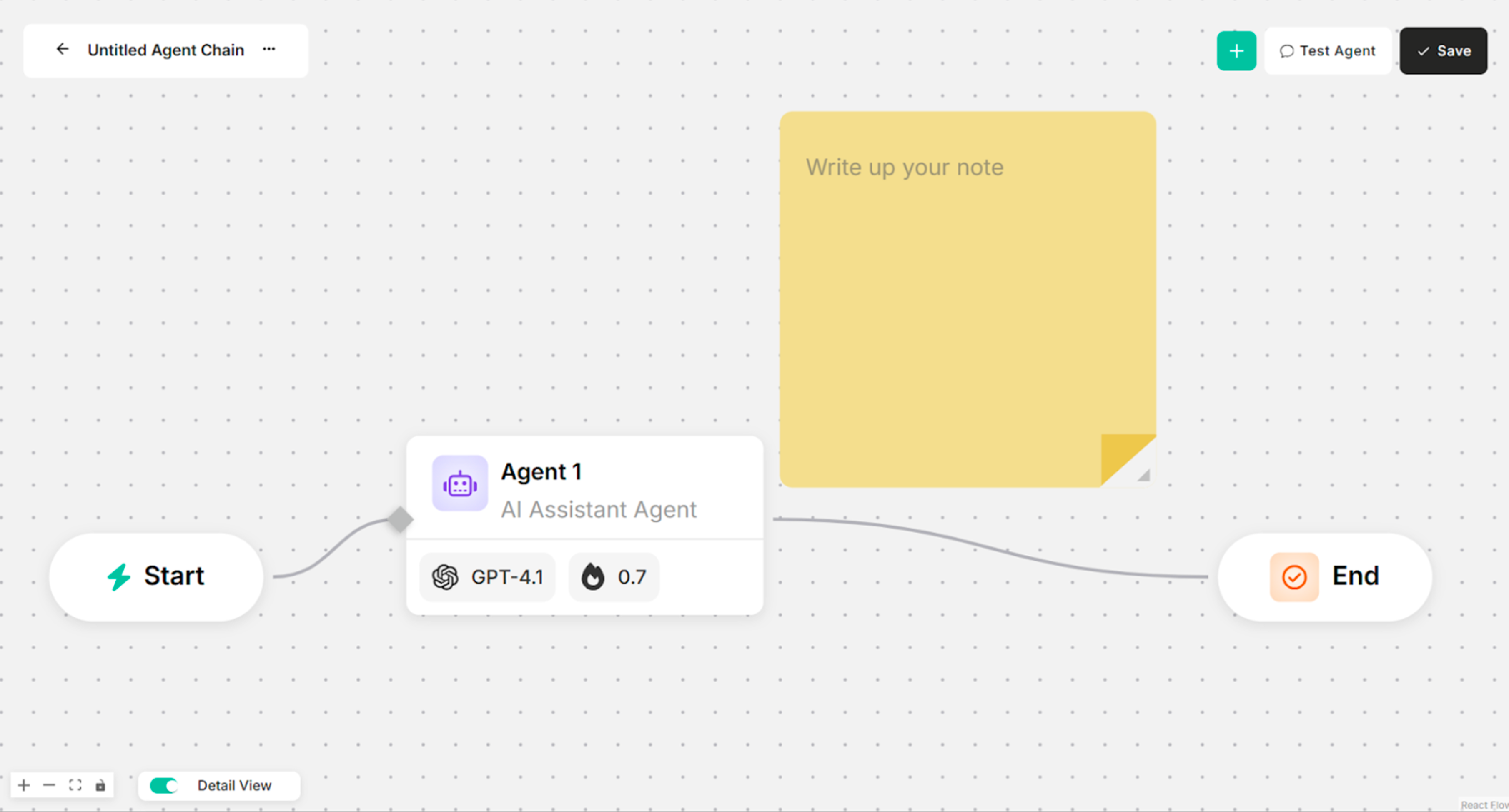 Figure: Creation canvas after Dragging and Dropping "Note"
3.3. Drag and drop "Conditions" on the Canvas
The system will successfully drag and drop Conditions into the canvas.
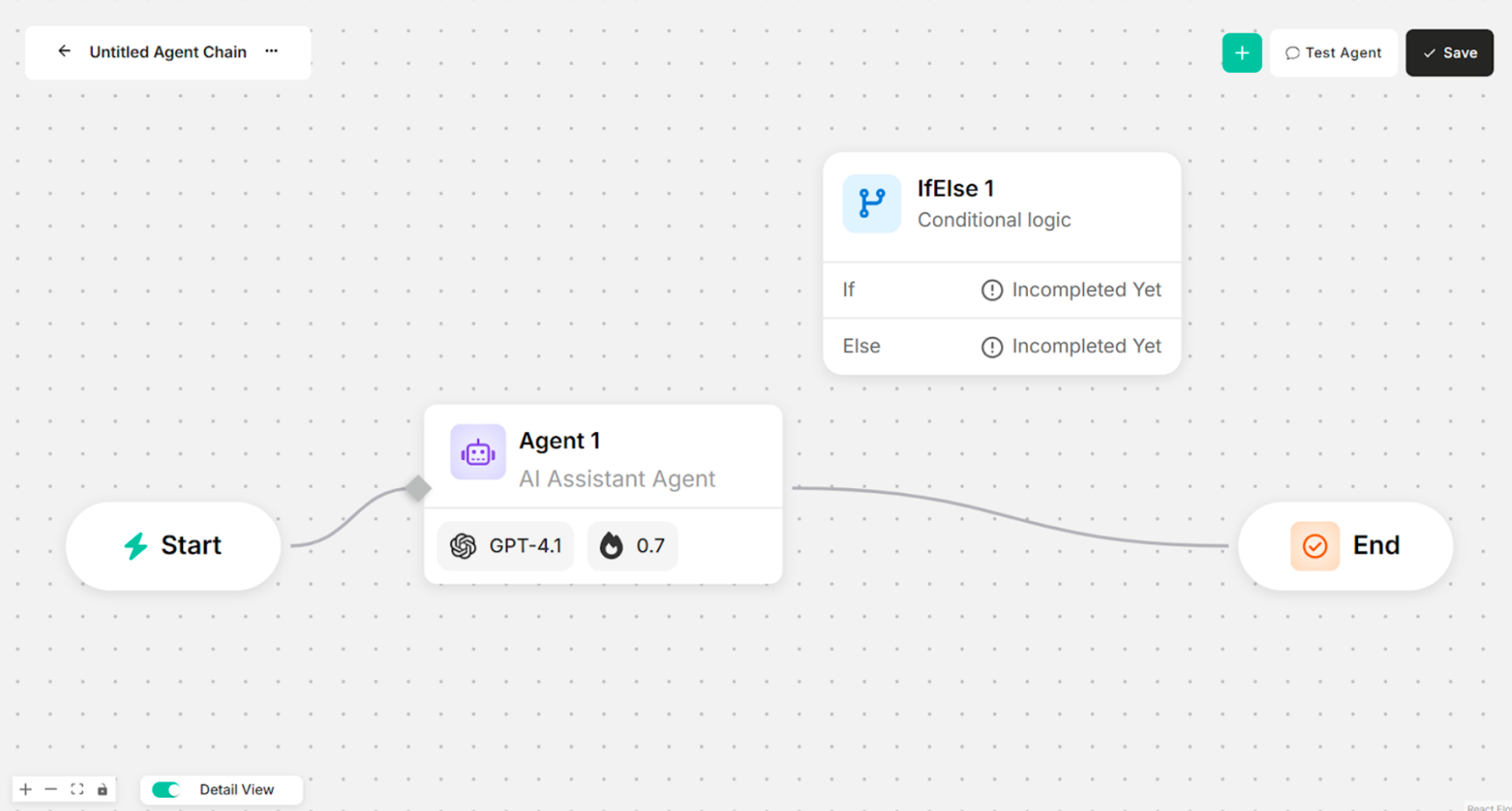 Figure: Creation canvas after dragging and dropping Conditions
3.4. Drag and drop "Looping" on the Canvas
The system will successfully drag and drop Looping into the canvas.
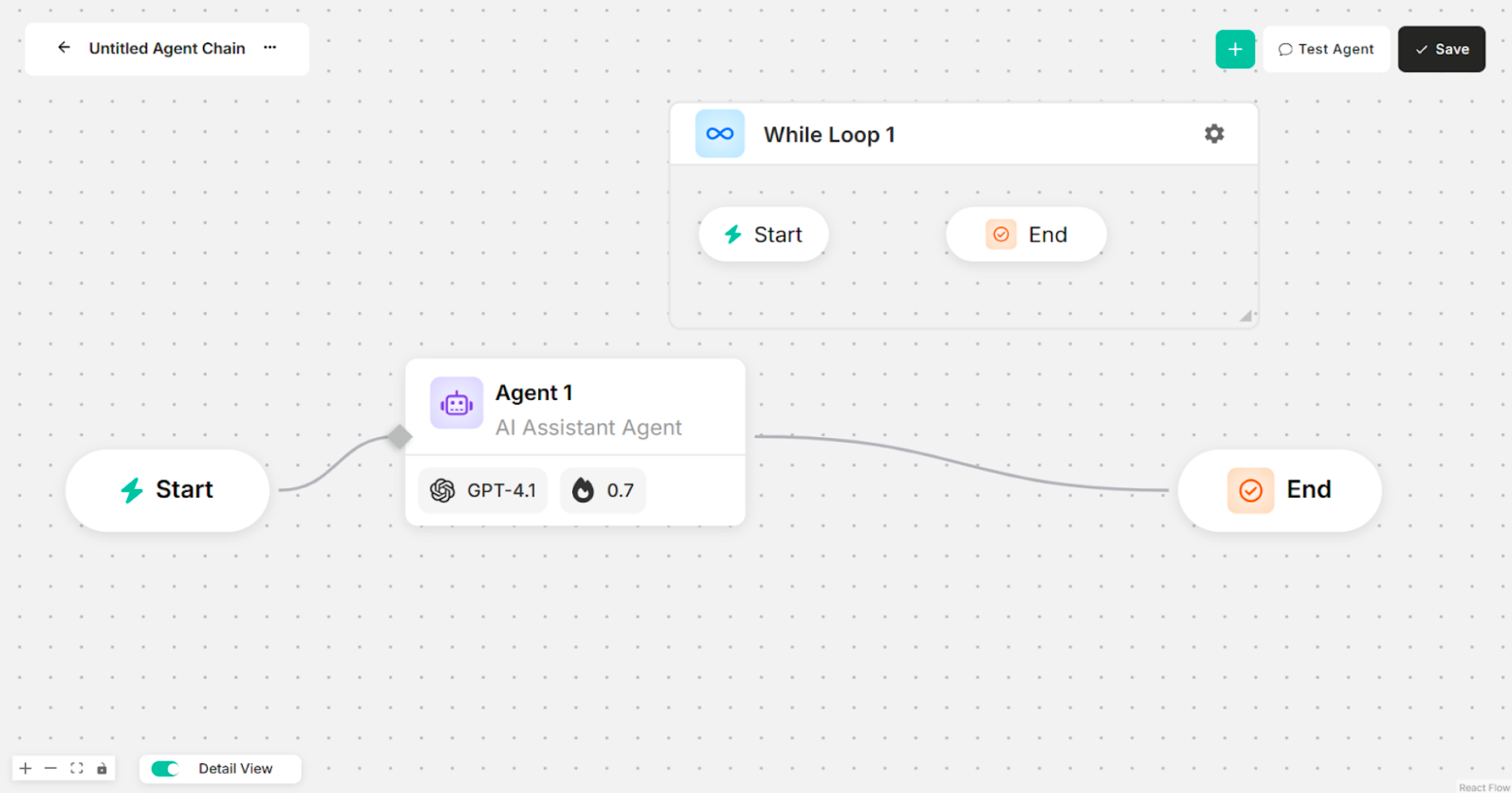 Figure: Creation canvas after dragging and dropping Looping
3.5. Drag and drop "Human Input" on the Canvas
The system will successfully drag and drop Human Input into the canvas.
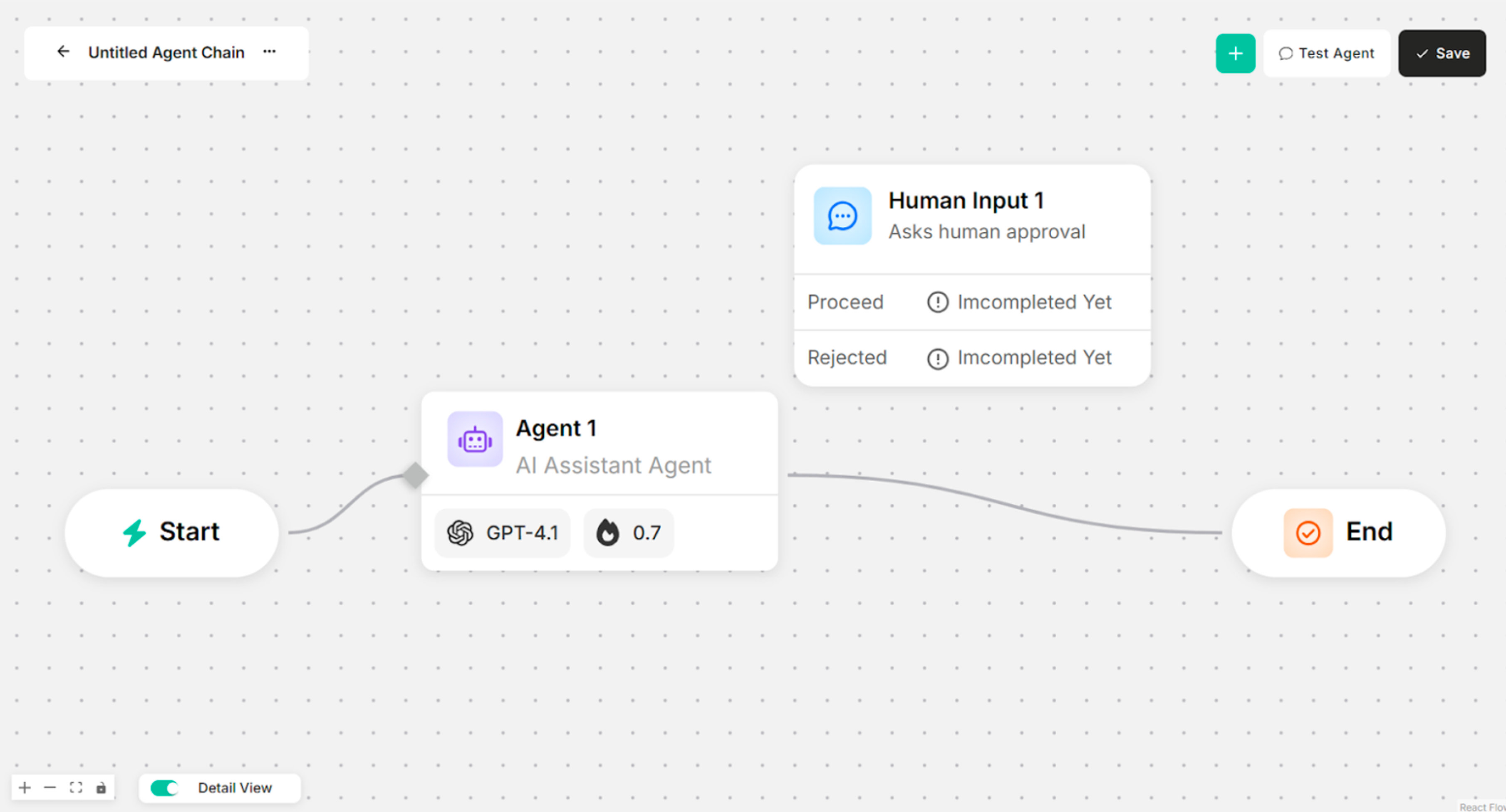 Figure: Creation canvas after drag and drop Human Input