Customization Settings
| Section | Description |
|---|---|
| Agent Appearance | To customize the Multi Agent Appearance |
| Widget Button | To add the Widget Button |
| Layout and Position | To select the Layout and Position |
Table: Section Available under the Customization Settings
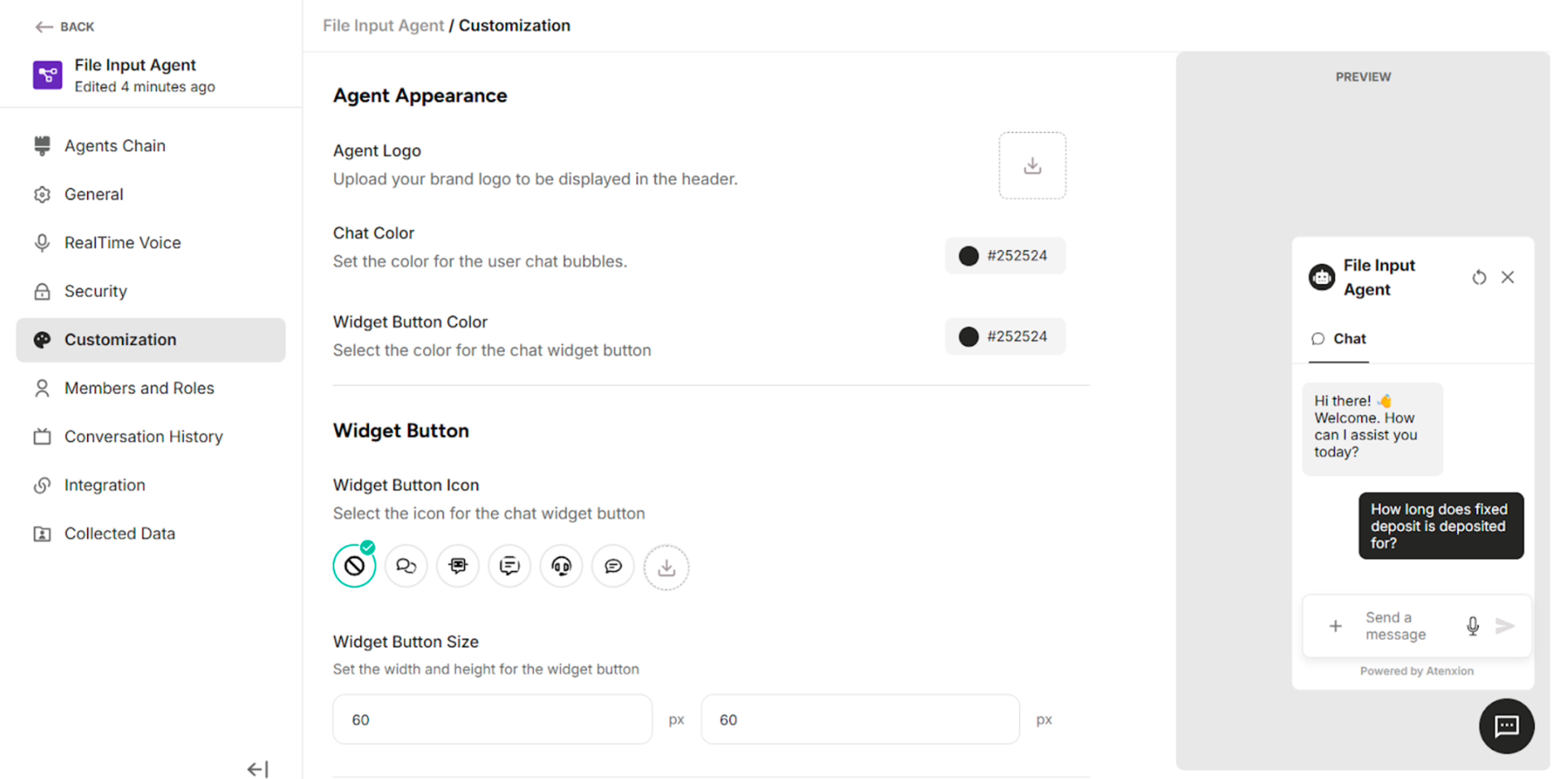 Figure: Customization Setting Interface
5.1. Agent Appearance
| Field | Description |
|---|---|
| Agent Logo | To upload your brand logo to be displayed in the header. |
| Chat Color | To set the color for the user chat bubbles. |
| Widget Button Color | To select the color for the chat widget button. |
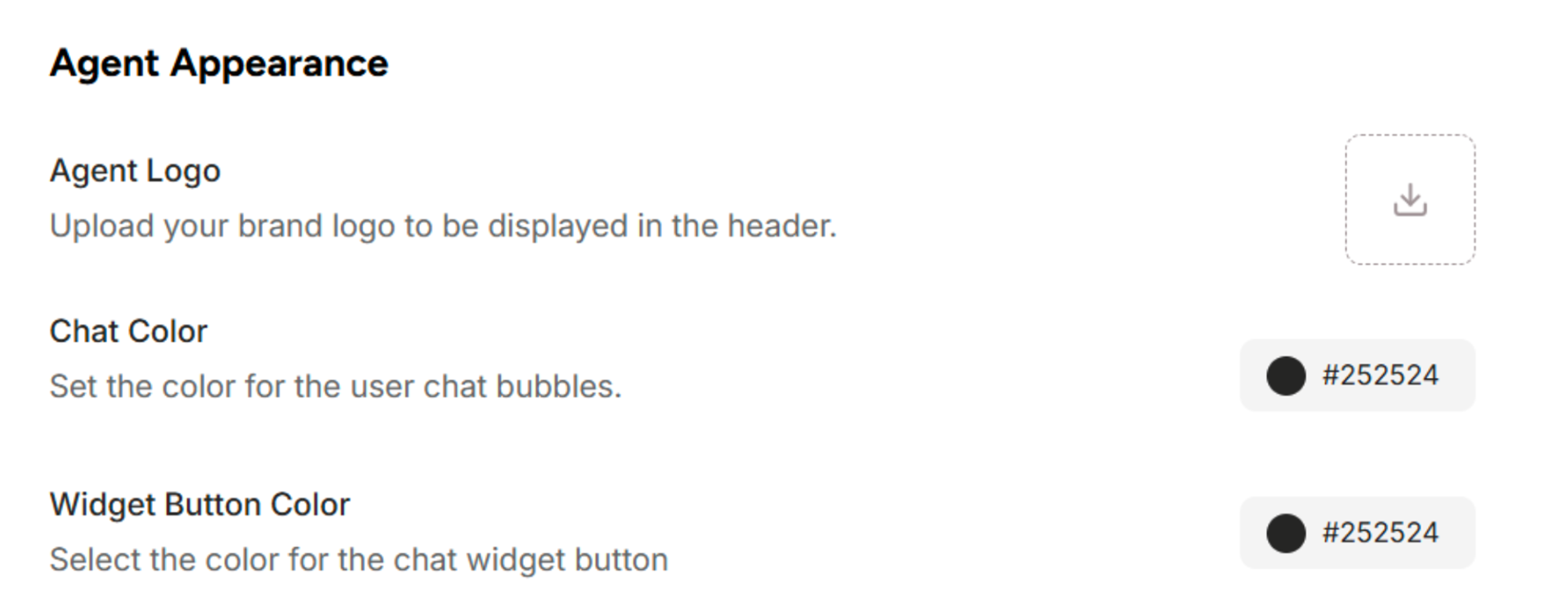 Figure: Agent Appearance Section
5.2. Widget Button
| Field | Description |
|---|---|
| Widget Button Icon | To select the icon for the chat widget button |
| Widget Button Size | To set the width and height for the widget button |
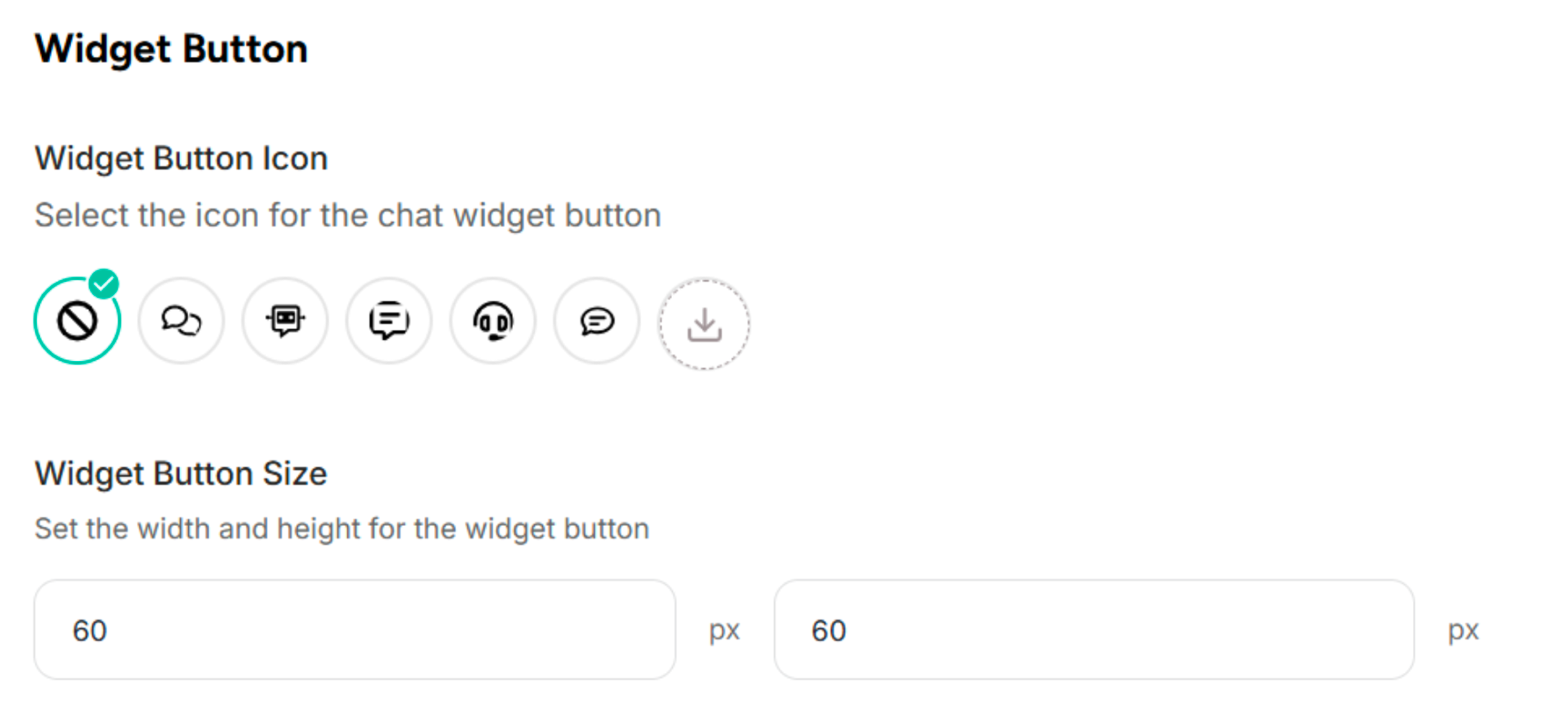 Figure: Widget Button Section
5.3. Layout and Position
| Field | Description |
|---|---|
| Widget Layout | To select the layout for the chat widget that you want to display. |
| Widget Panel | To set the width and height for the widget panel. |
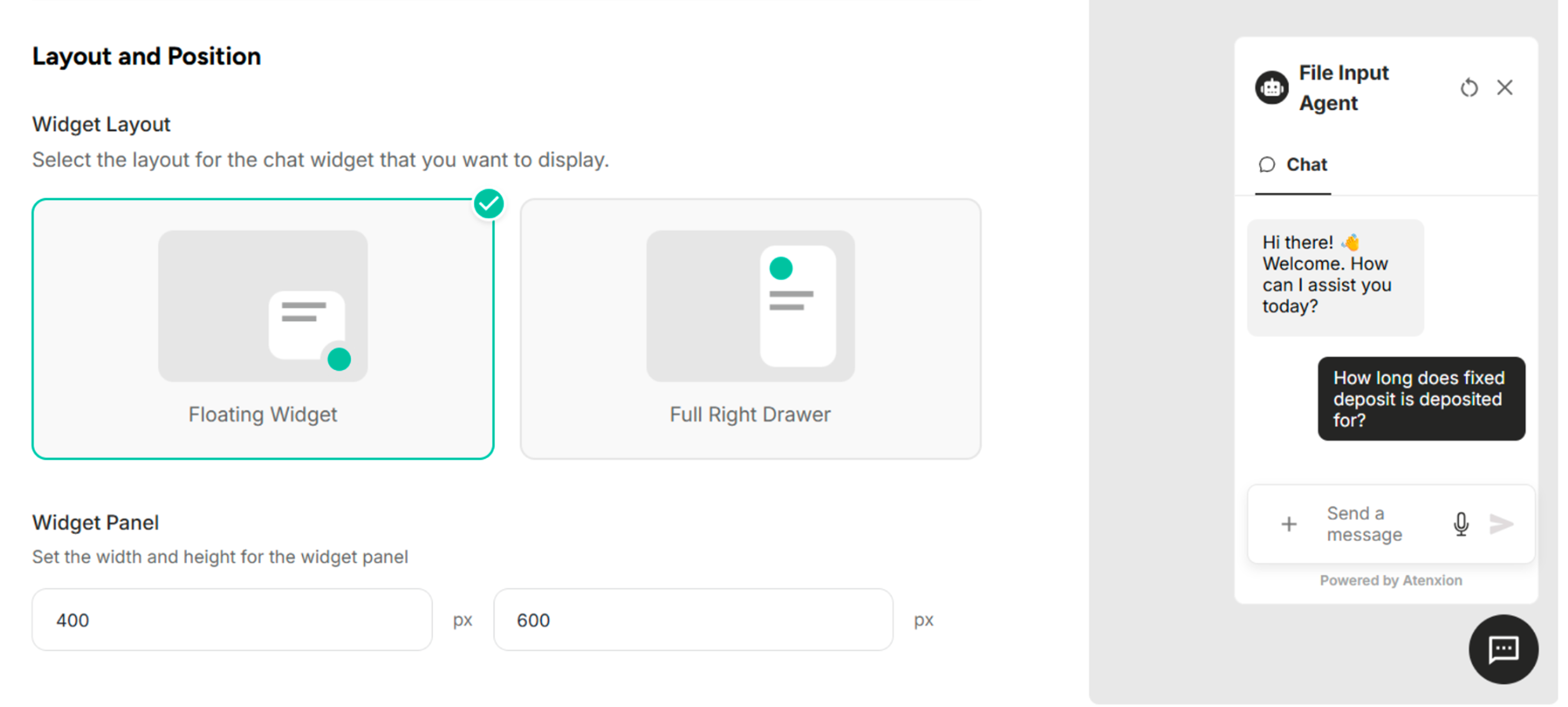 Figure: Layout and Position Section when choosing Floating Widget
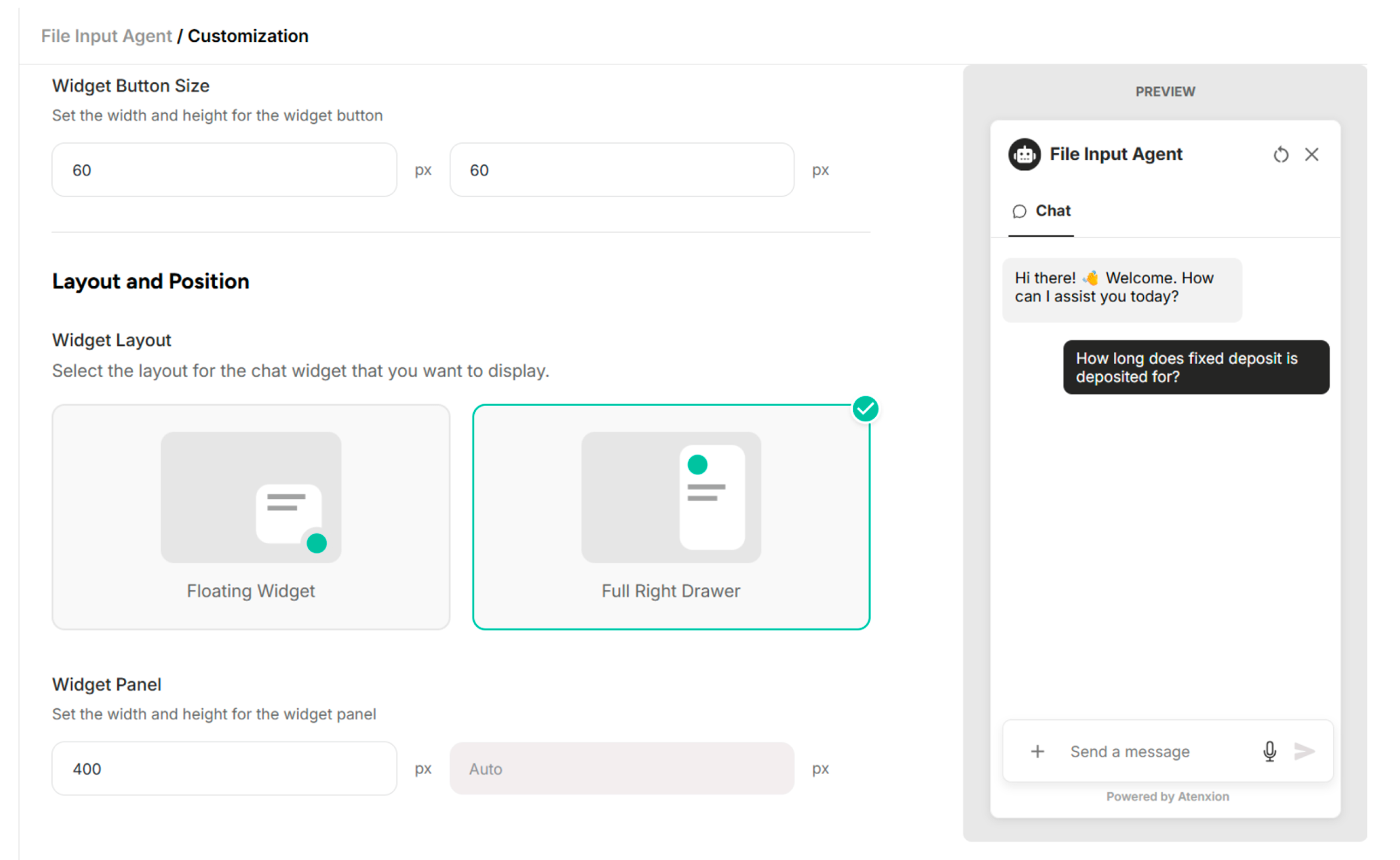 Figure: Layout and Position when choosing Full Right Drawer