Cloud Drives
| Options | Description |
|---|---|
| Google Drive | Upload files from Google Drive |
| Amazon S3 Buckets | Upload files from Amazon S3 Buckets |
| OneDrive | Upload files from OneDrive |
| SharePoint | Upload files from SharePoint |
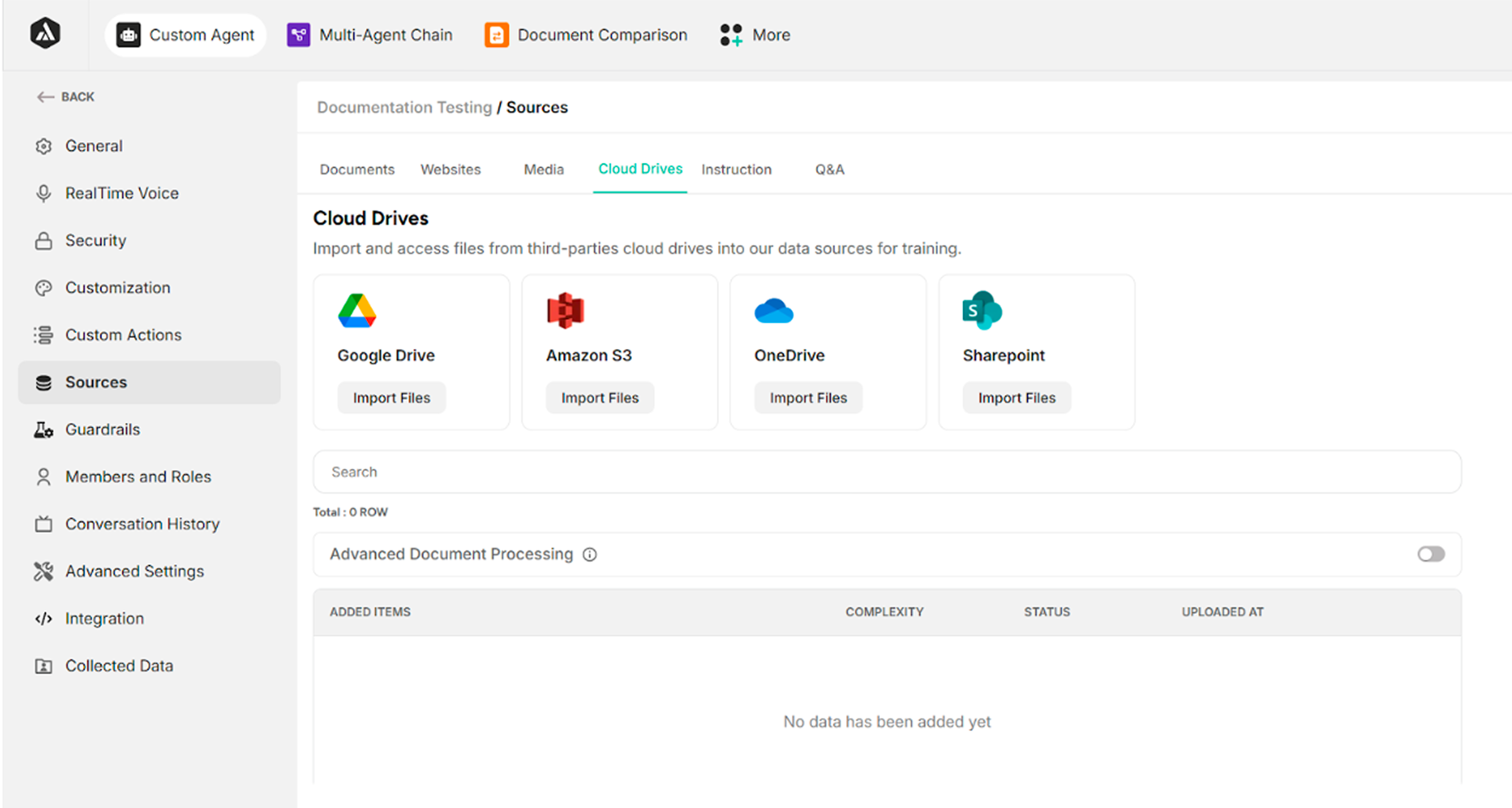
Figure: Google Drive, Amazon S3 Buckets, OneDrive, and SharePoint under Cloud Drives section
Google Drive
| Steps | Description |
|---|---|
| 1 | Click Import Files |
| 2 | Sign in to Gmail (if the user has not logged in to a Gmail account in the browser) or select an account (if the user has already logged in to a Gmail account in the browser) |
| 3 | Select files from Drive |
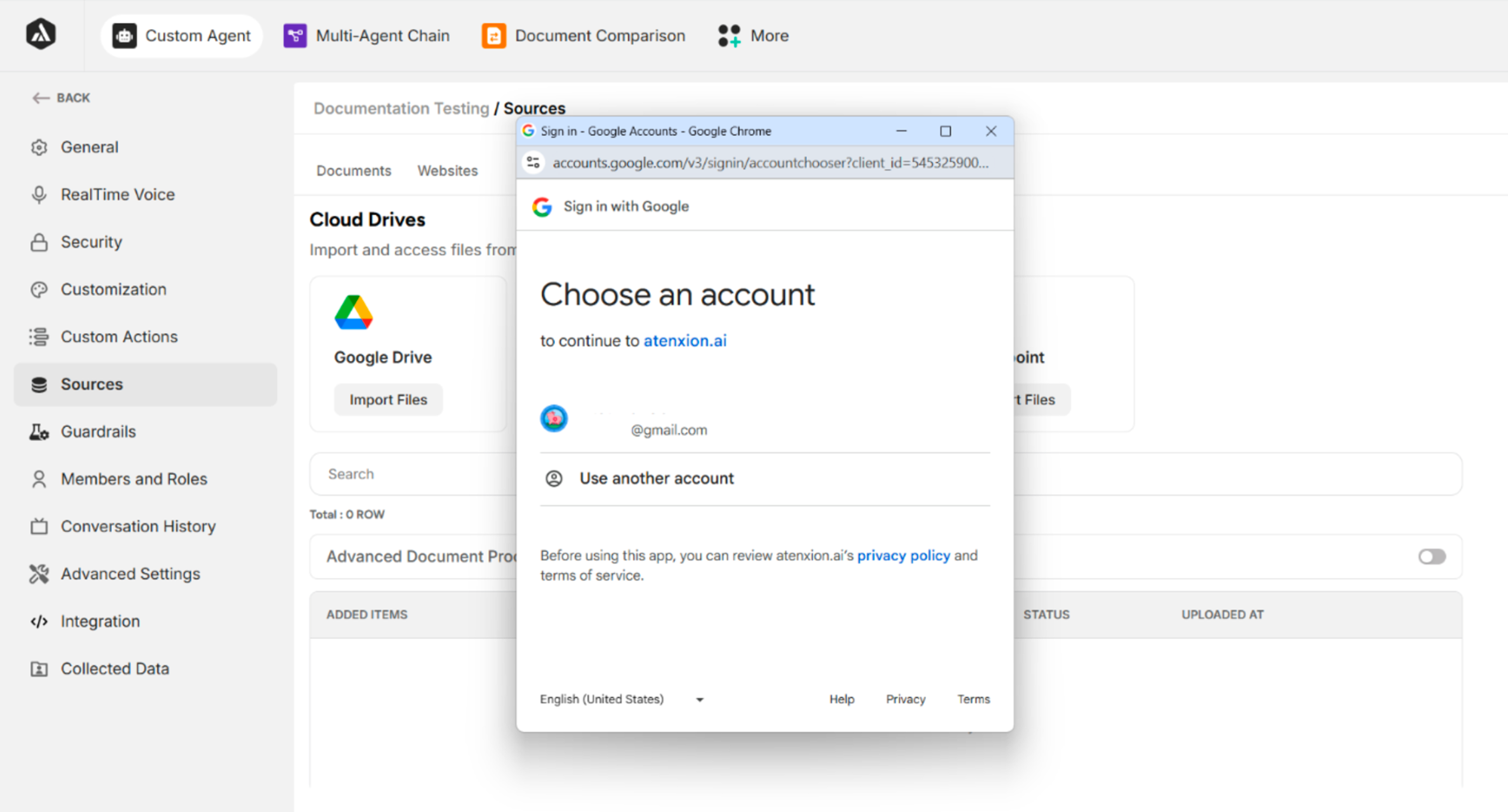
Figure: Select Gmail account
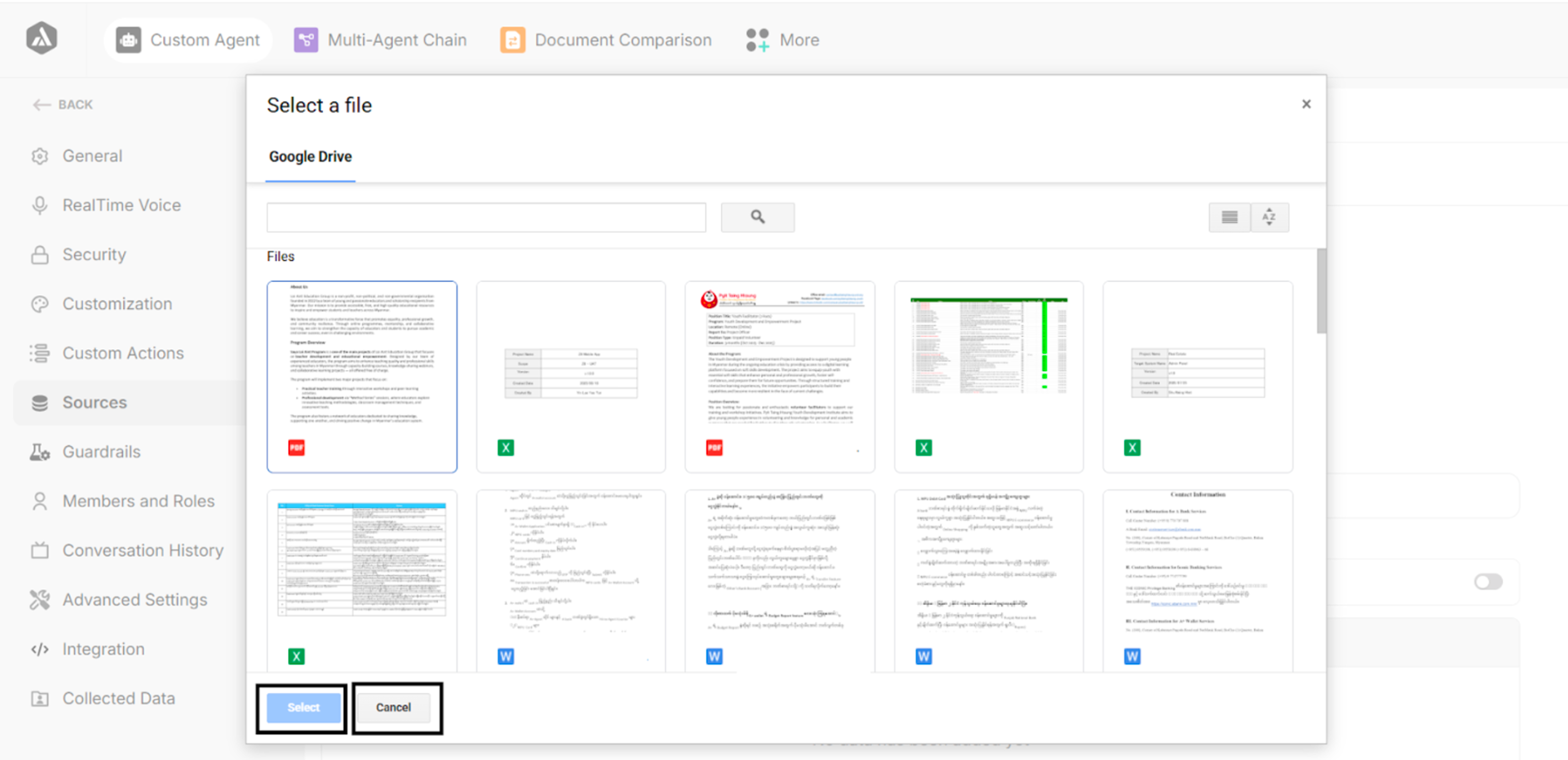
Figure: Files from Google Drive
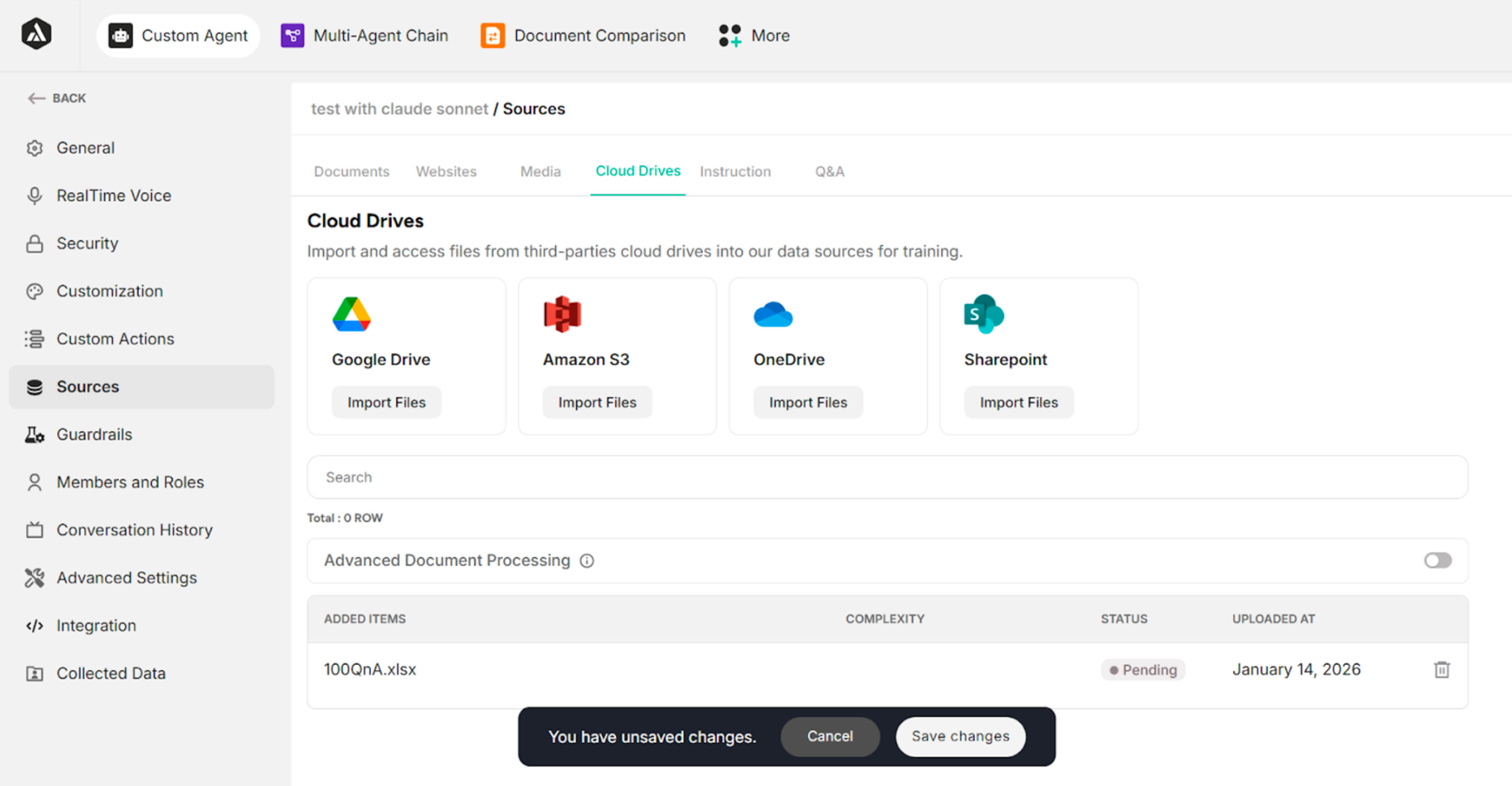
Figure: Screen after selecting the files from Google Drive
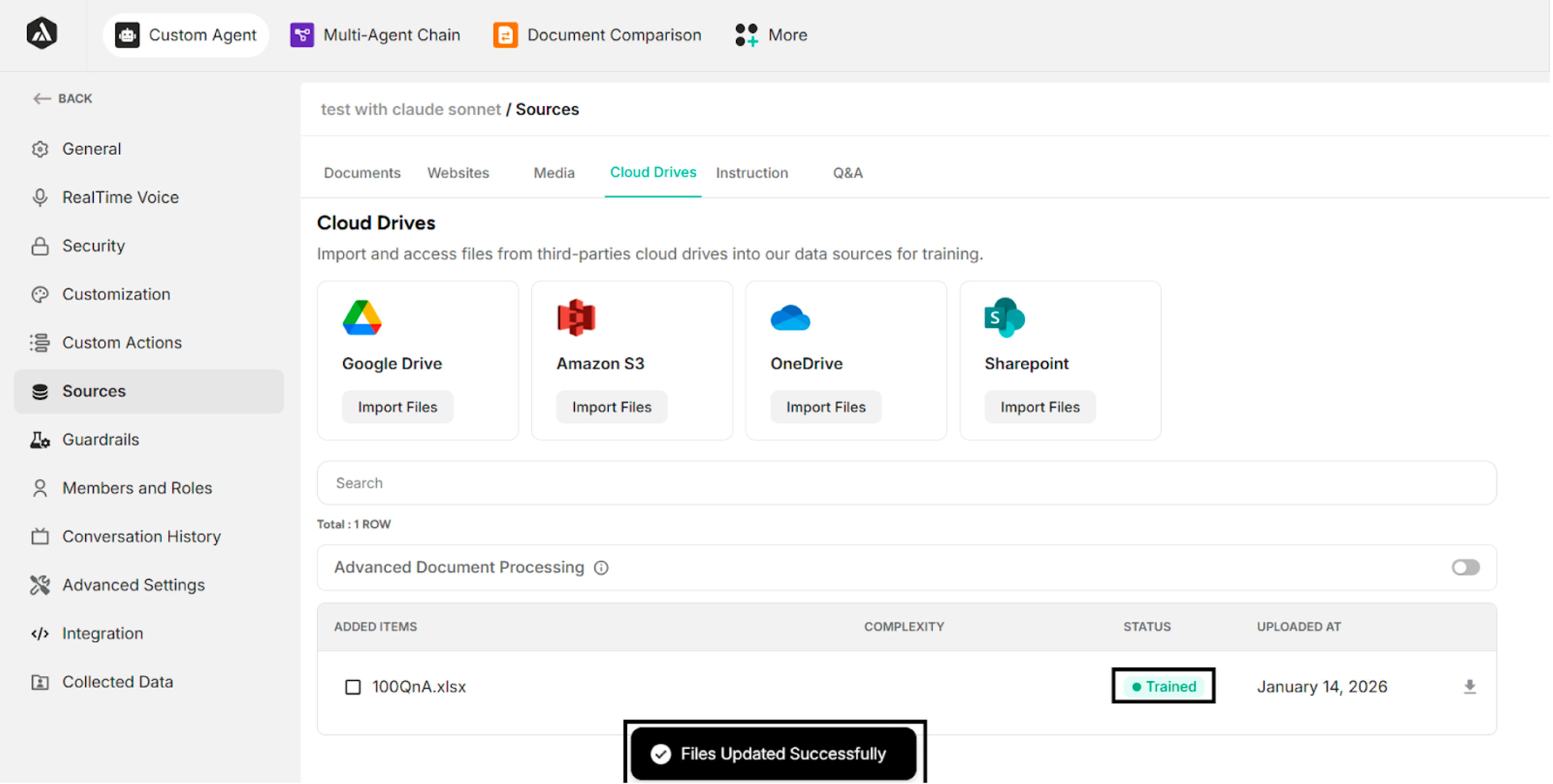
Figure: Success Message after clicking Save Changes Button
Amazon S3 Buckets
| Steps | Description |
|---|---|
| 1 | Click Import Files |
| 2 | Enter credentials |
| 3 | Select files from Amazon S3 Buckets |
Table: Steps to upload files from Amazon S3 Buckets
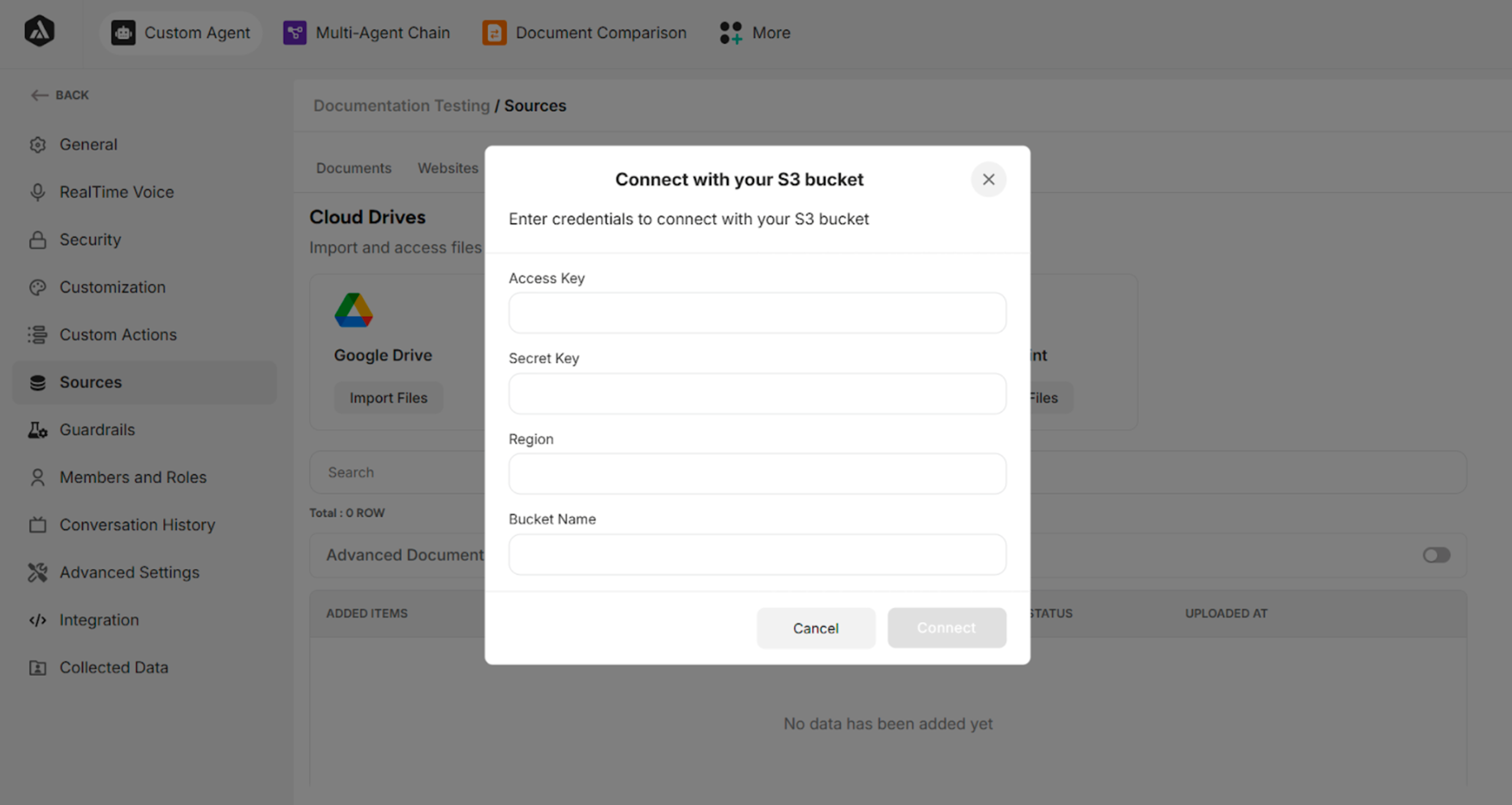
Figure: Credential Input Form
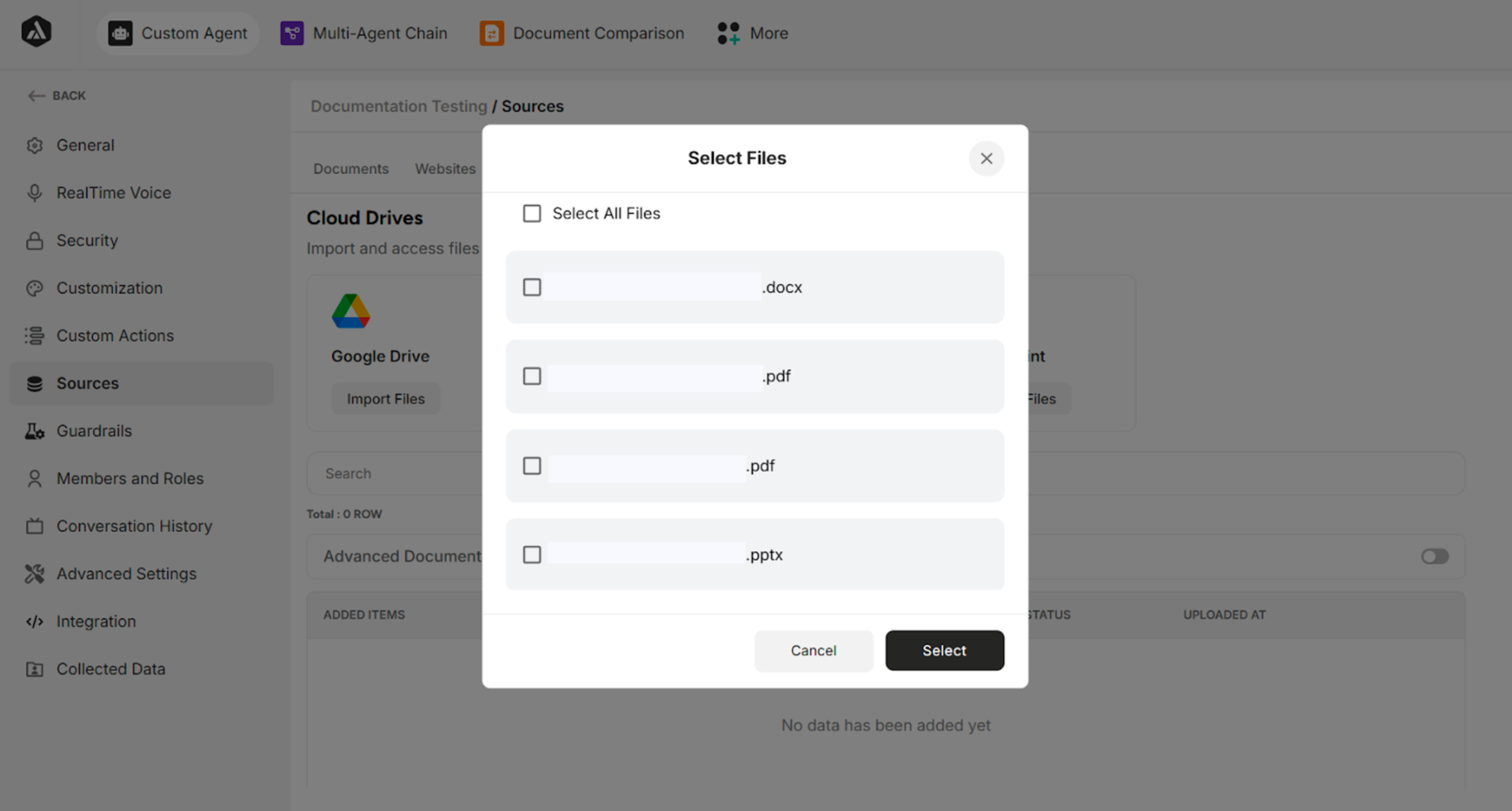
Figure: Files from Amazon S3 Buckets
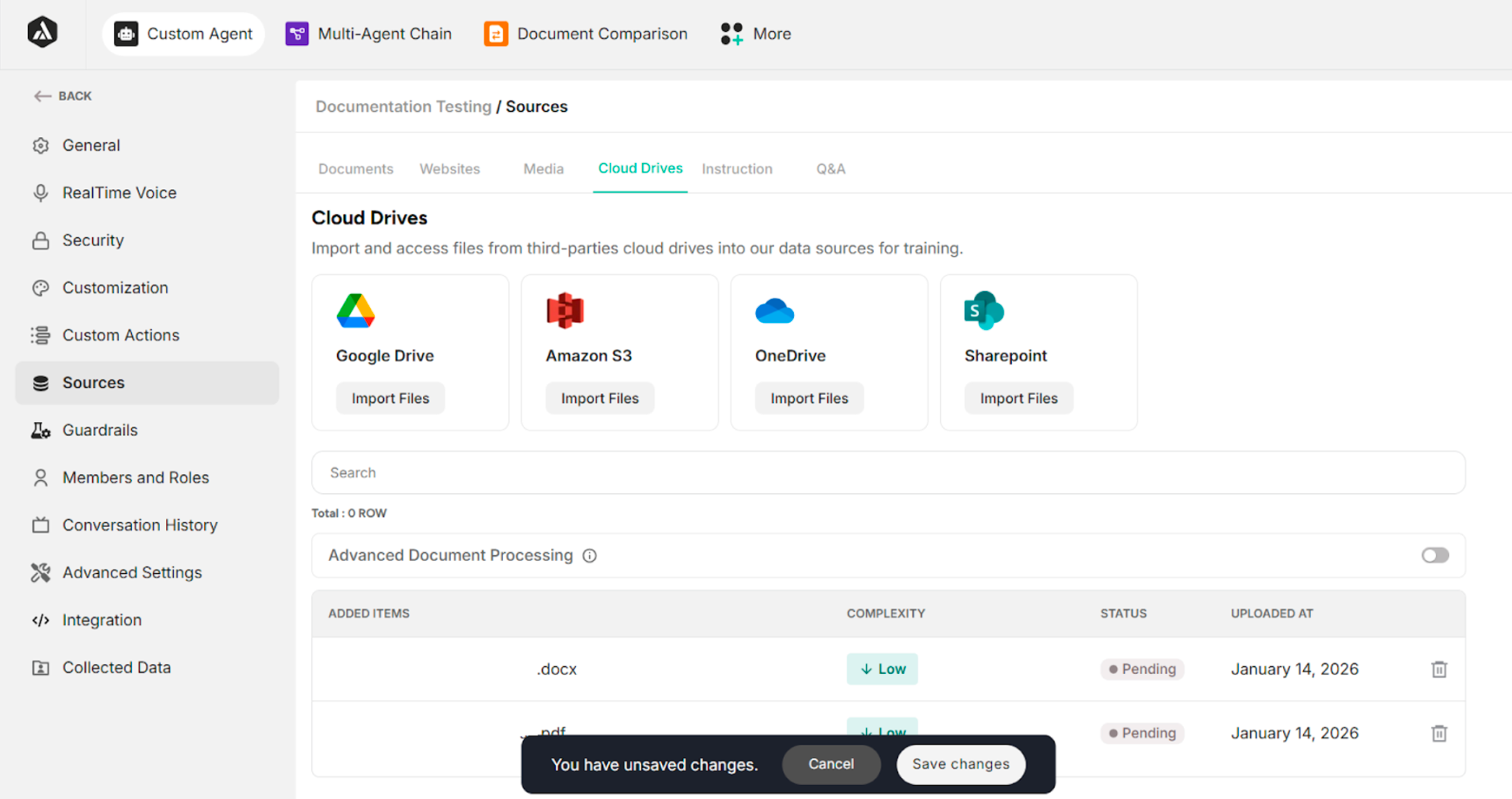
Figure: Screen after selecting the files from Amazon S3 Buckets
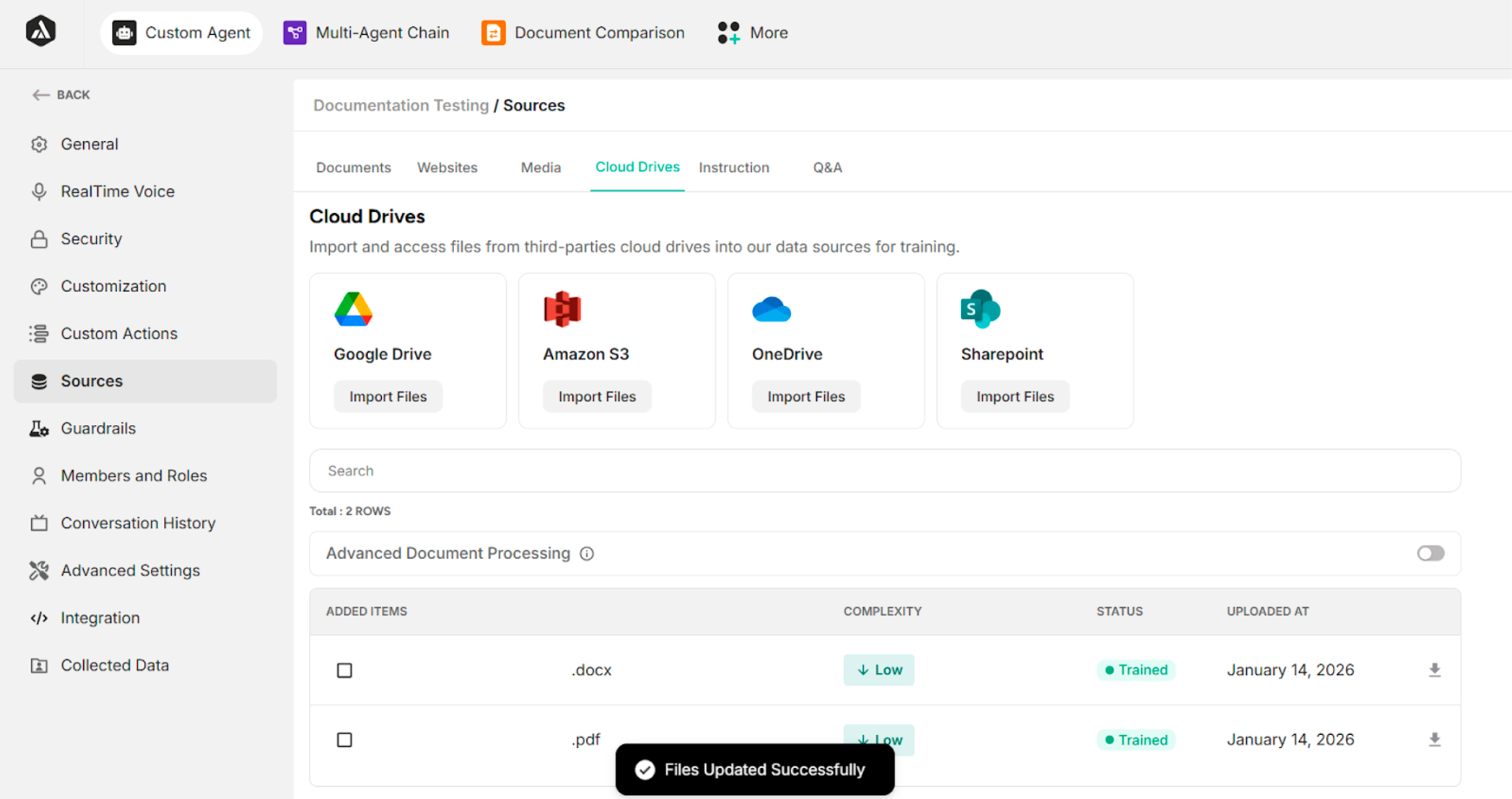
Figure: Success Message after clicking Save Changes Button4
OneDrive
| Steps | Description |
|---|---|
| 1 | Click Import Files |
| 2 | Sign in to the Microsoft OneDrive account |
| 3 | Select files from OneDrive |
Table: Steps to upload files from OneDrive
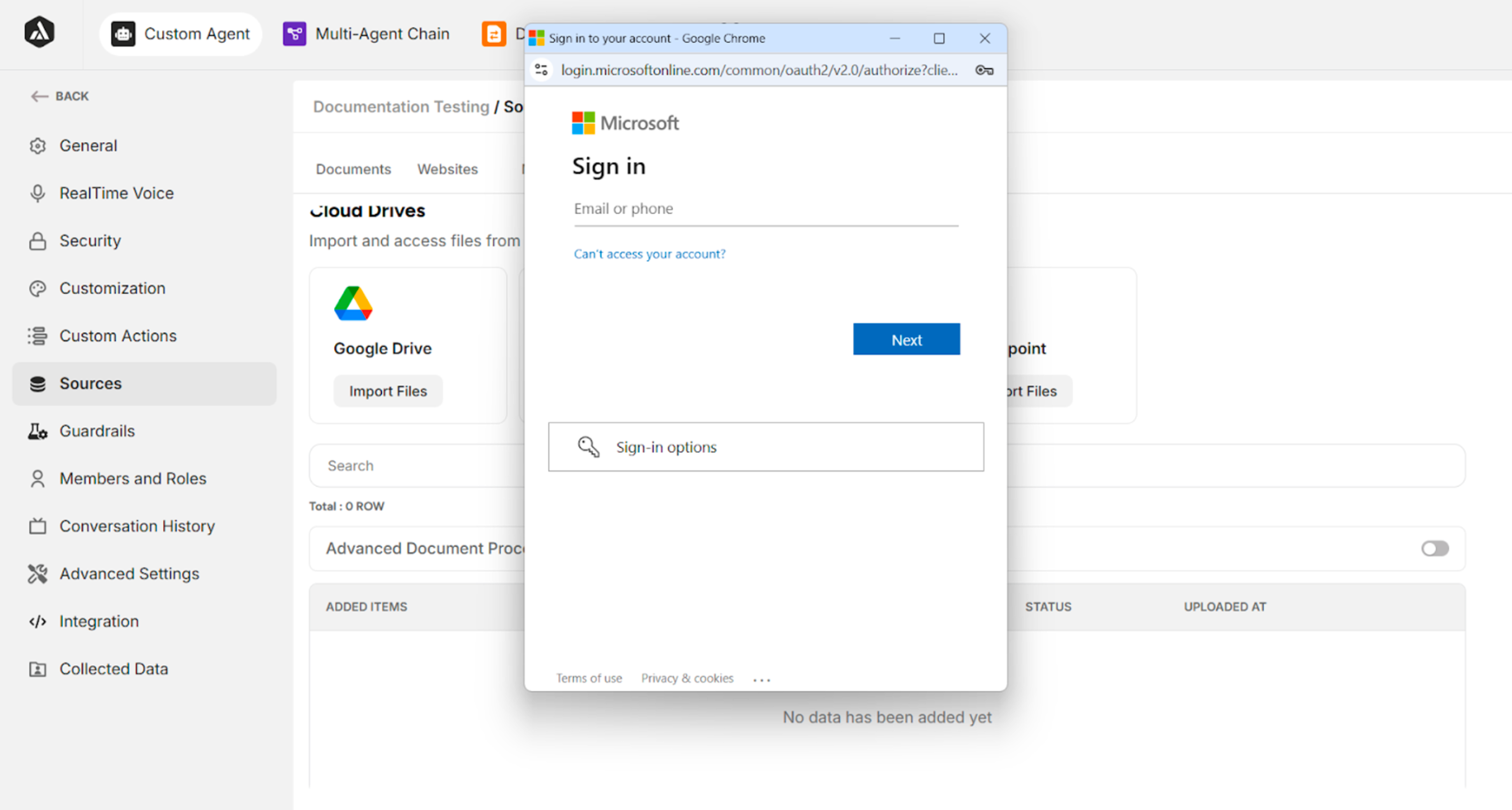
Figure: Sign In OneDrive account
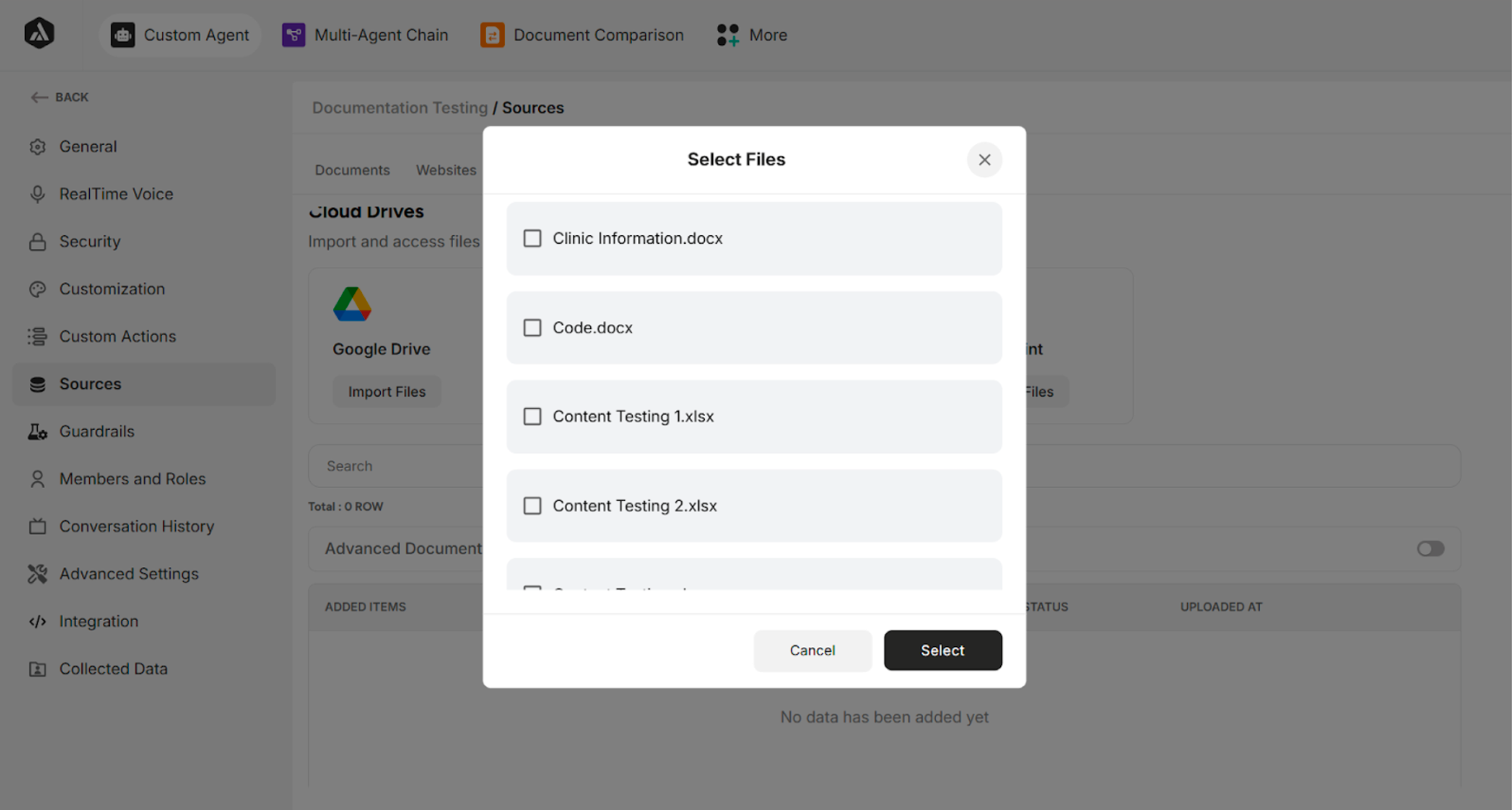
Figure: Files from OneDrive
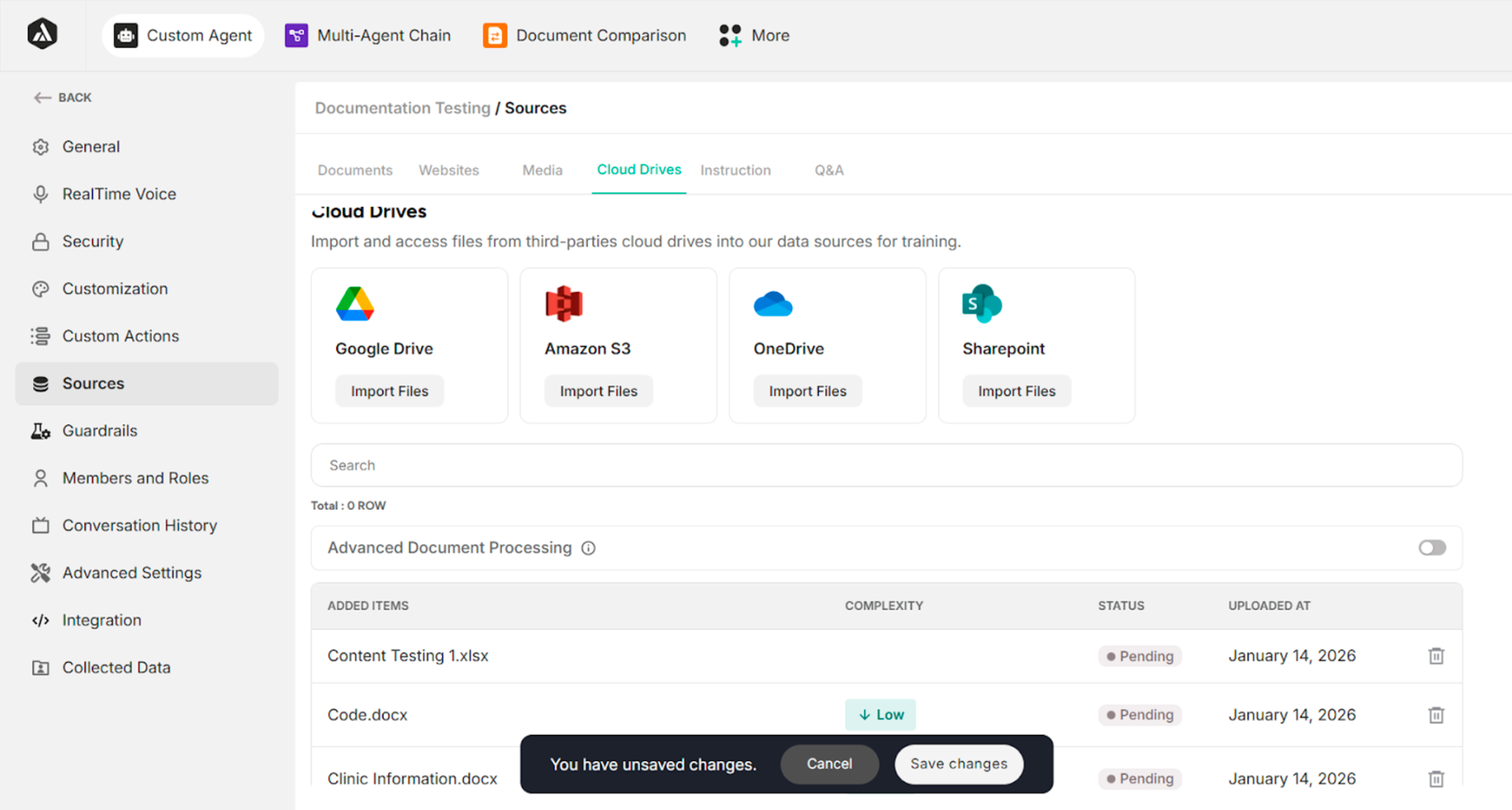
Figure: Screen after selecting the files from OneDrive
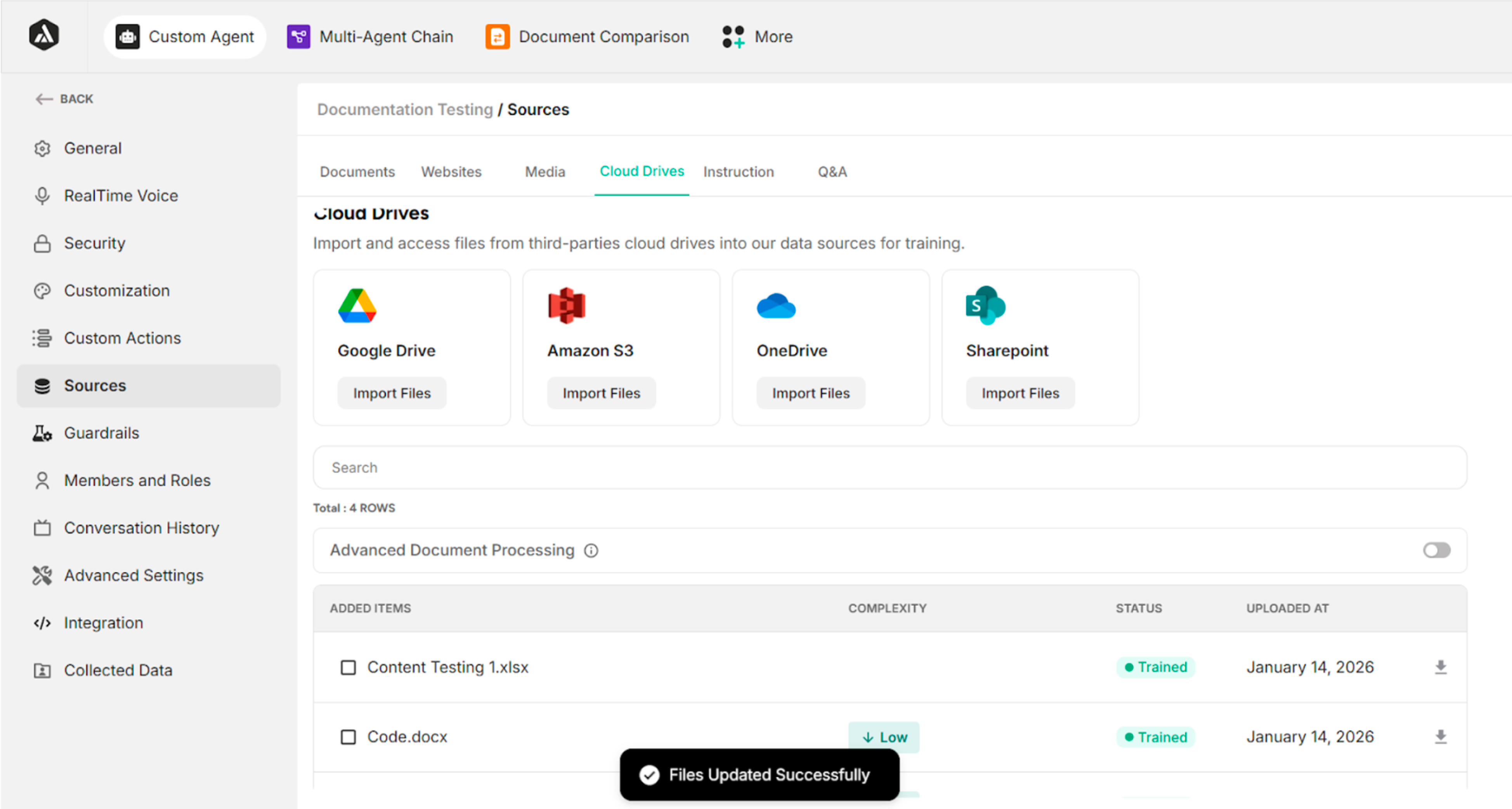
Figure: Success Message after clicking Save Changes Button
SharePoint
| Steps | Description |
|---|---|
| 1 | Click Import Files |
| 2 | Sign in to the Microsoft SharePoint account |
| 3 | Select files from SharePoint |
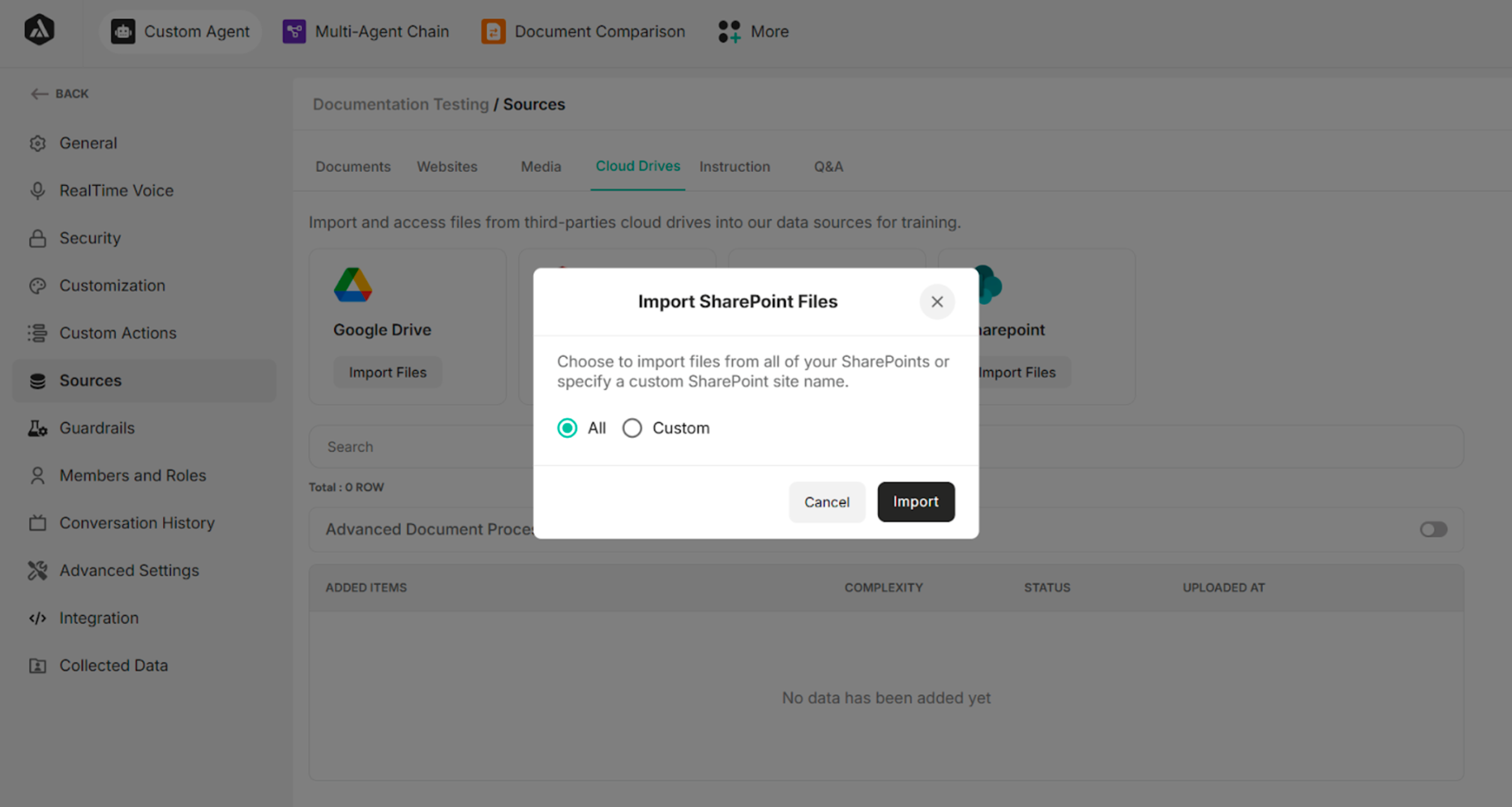
Figure: Import SharePoint Files Pop-up box
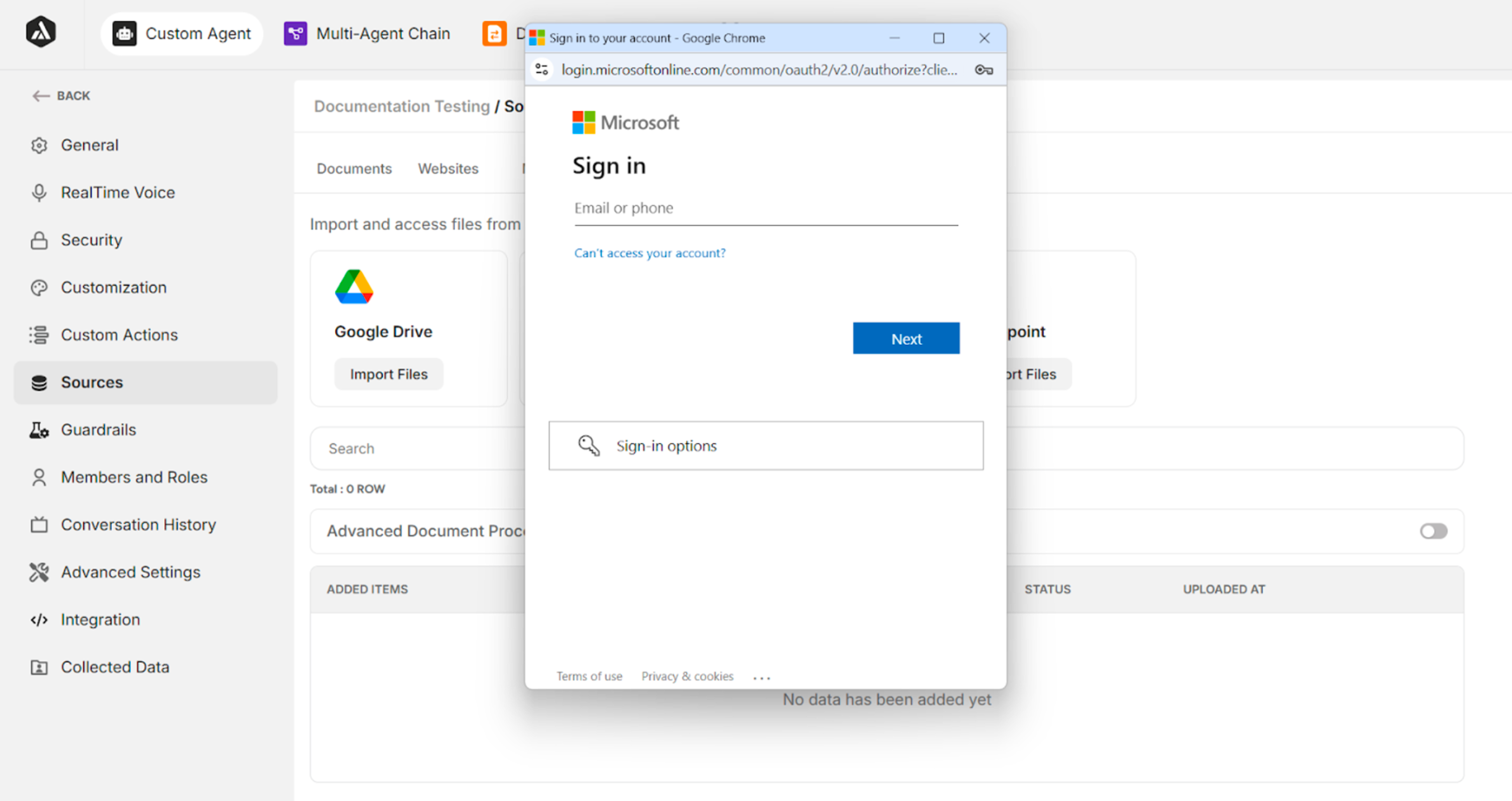
Figure: Sign In SharePoint account
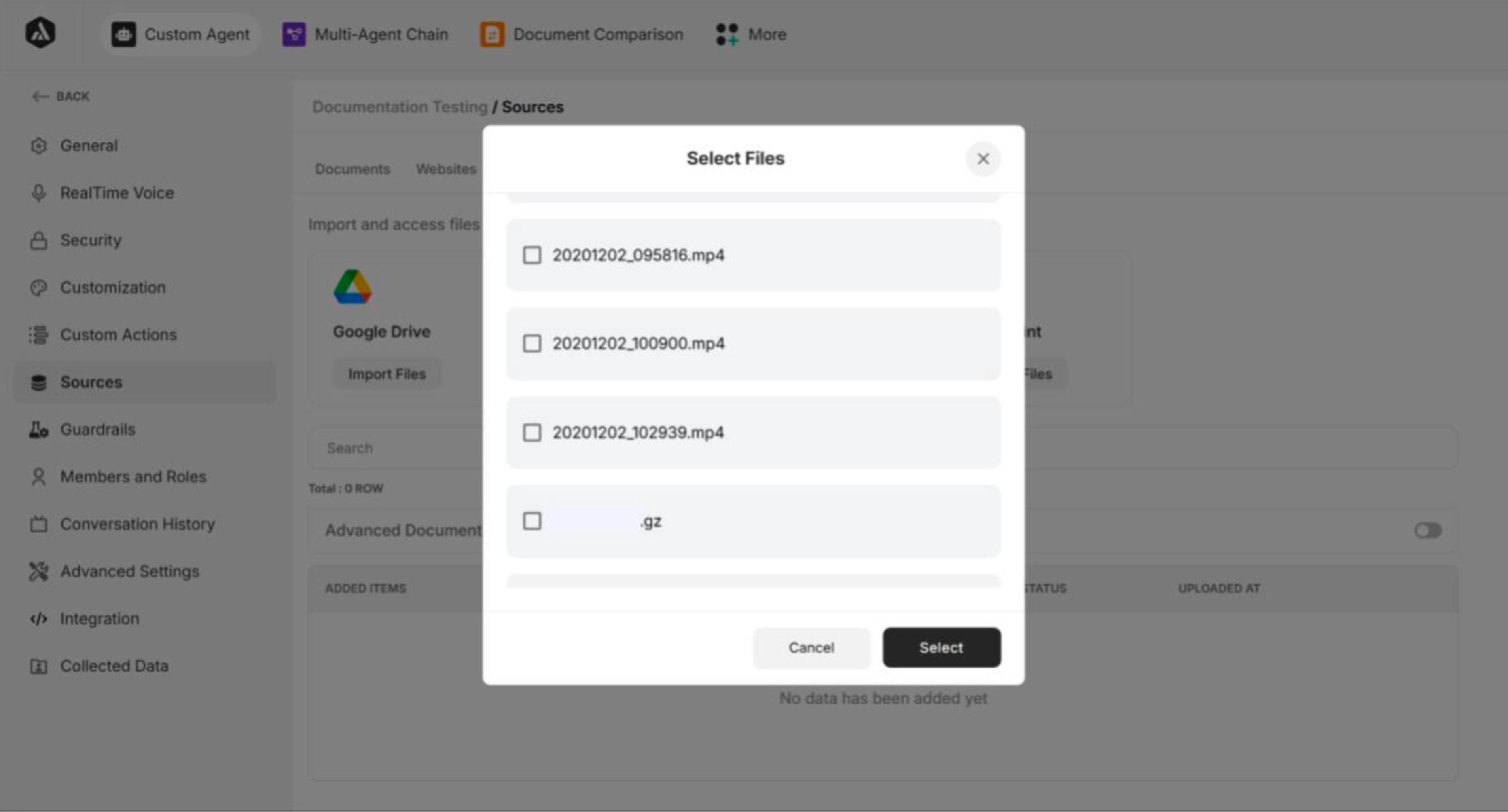
Figure: Files from SharePoint
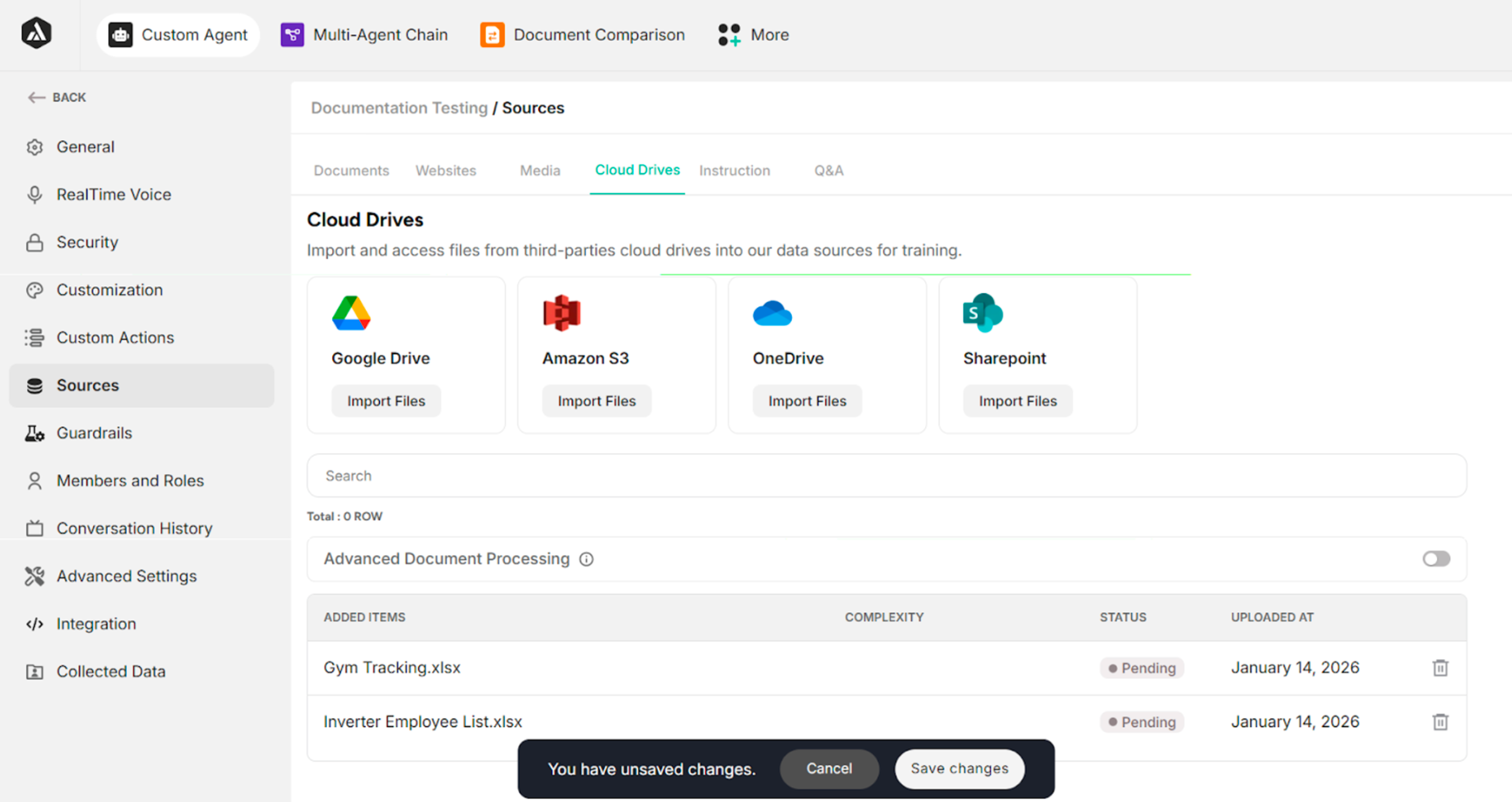
Figure: Screen after selecting the files from SharePoint
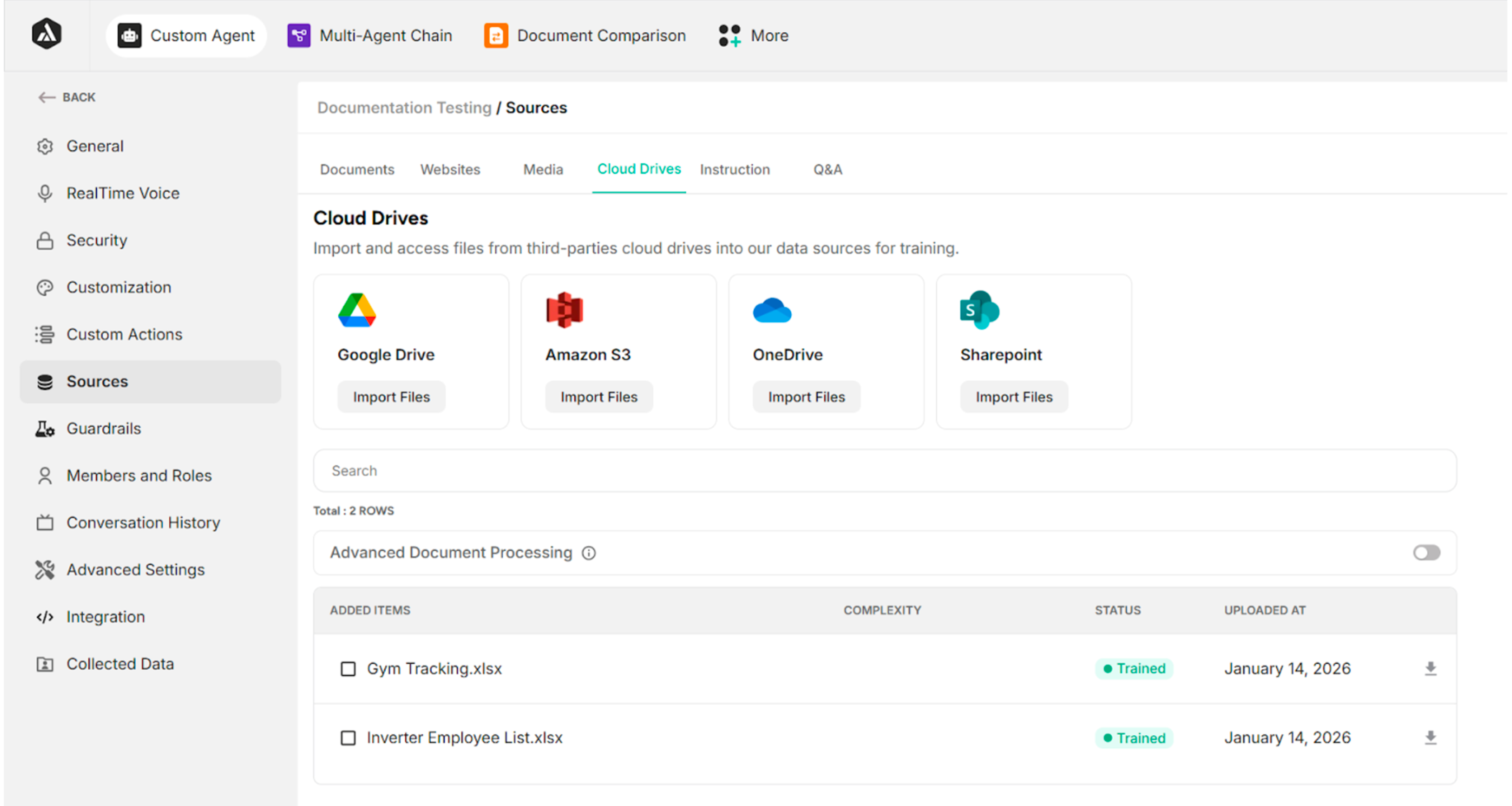
Figure: Success Message after clicking Save Changes Button