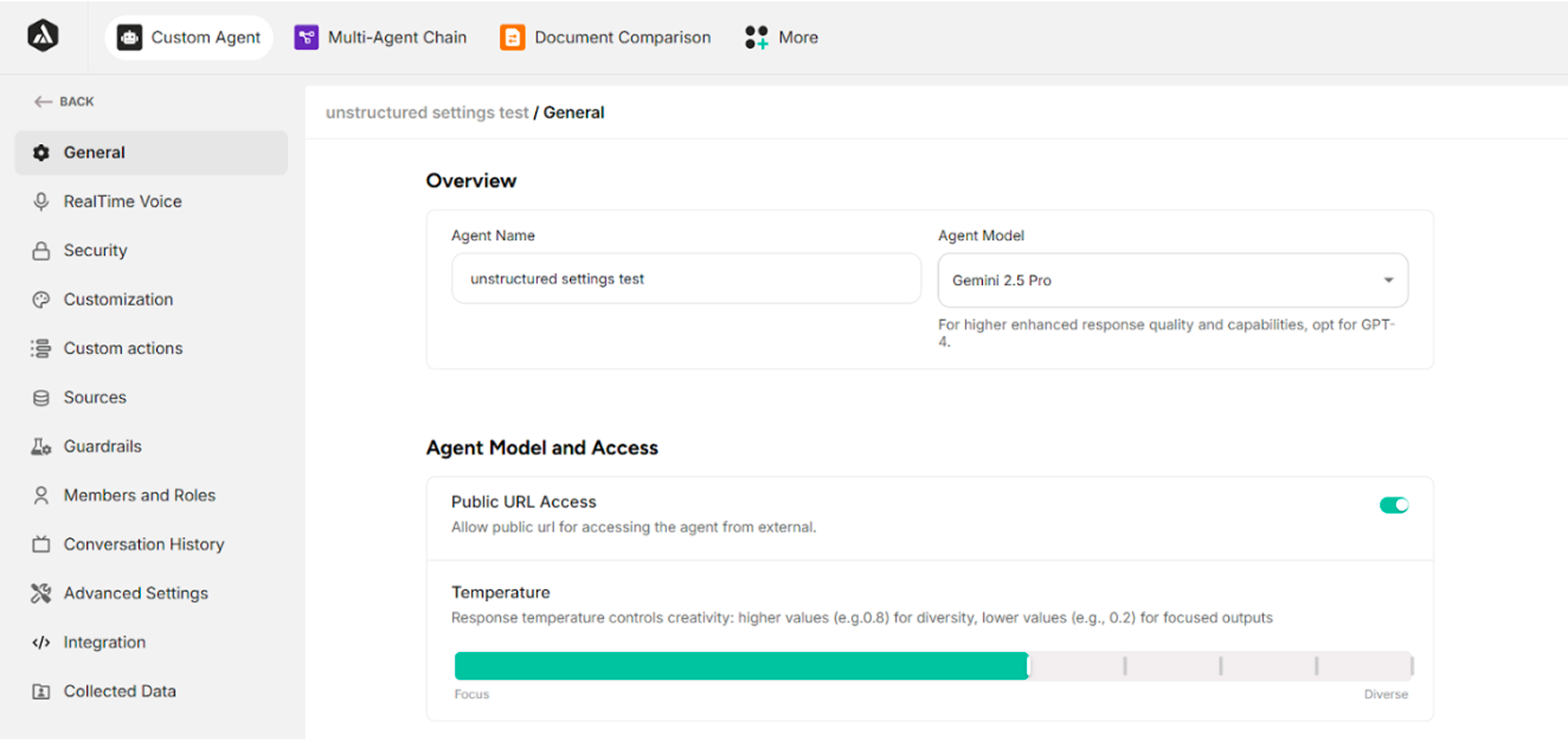
Unstructured Agent Settings
| No. | Section Name | Description |
|---|---|---|
| 1. | General | Edit the agent's name, choose agent's model, response temperature, initial message, predefined messages, set the default language, and agent voice under Message & Conversation, the code to be embedded on the website, enterprise chat panel URL, private widget and delete the created agent |
| 2. | Realtime Voice | Enable real-time conversation with the created agent, edit Voice Model and Default Agent Voice, and enter Voice Tone Instruction |
| 3. | Security | Change the widget access, and limit the number of messages sent from a single device within the iframe and agent button |
| 4. | Customization | Change the agent appearance, choose Widget Button Icons, select the layout for the chat widget that the user wants to display, set the width and height for the widget panel, and enable voice input for the chat widget |
| 5. | Custom Actions | Add a personalized action under agent response to tailor interactions to user's specific needs |
| 6. | Sources | Update, delete, or upload new data sources |
| 7. | Guardrails | Customize input and output guard settings to ensure a safe and controlled AI chat experience |
| 8. | Members and Roles | Invite agent owner and member |
| 9. | Conversation History | Check the chat logs by dates and rewrite the Disliked messages |
| 10. | Advanced Settings | Adjust embedding model, chunk, reranker settings to optimize user's agent, enable/disable awareness to previous chat history, metadata tagging, and video settings |
| 11. | Integration | Connect chat agent with thousands of apps with integration |
| 12. | Collected Data | Check and export the data submitted by the users through the Call-To-Action forms |
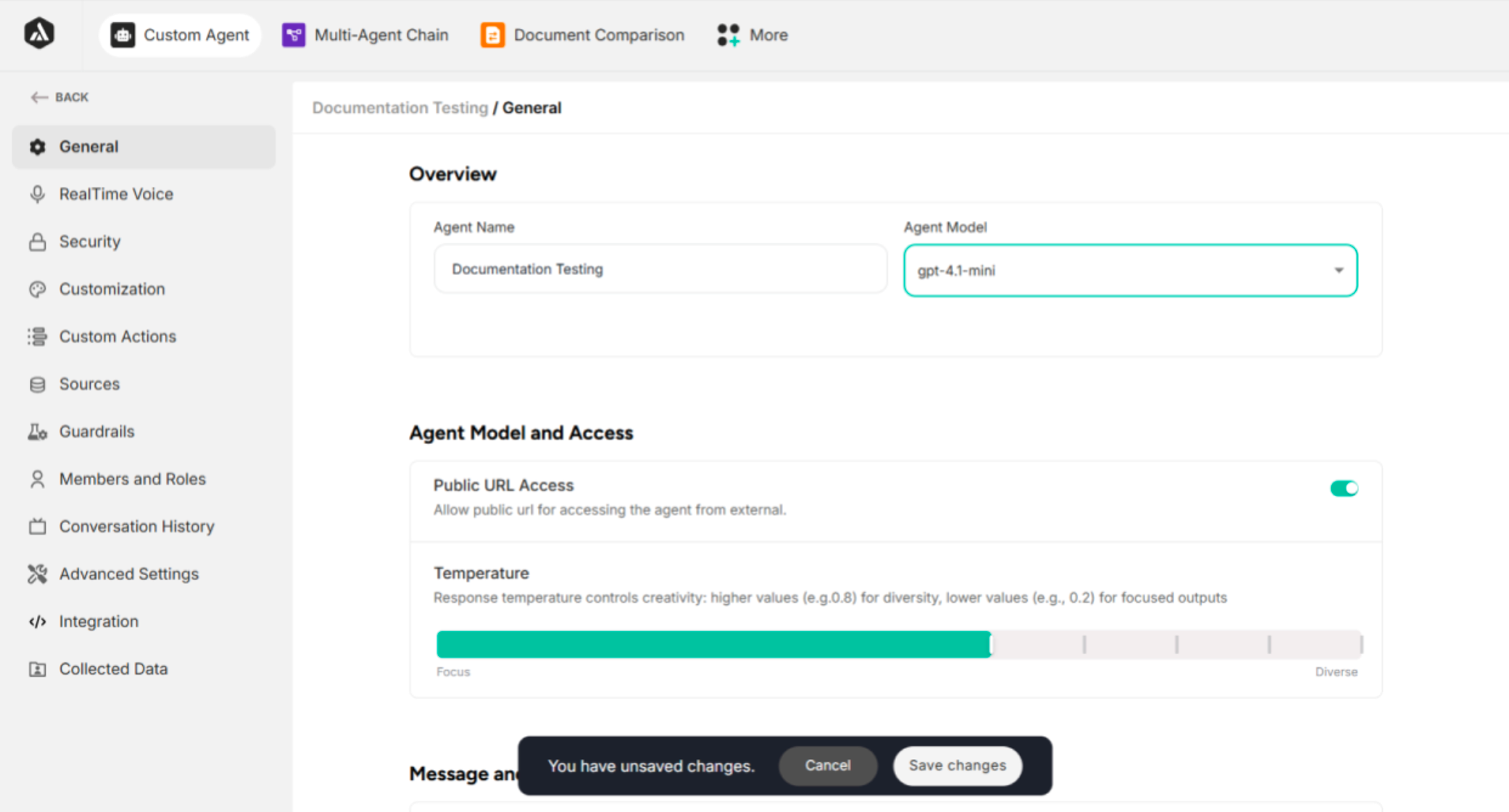
| Button Name | Description |
|---|---|
| Cancel | Cancel the updated changes |
| Save Changes | Save the updated changes |