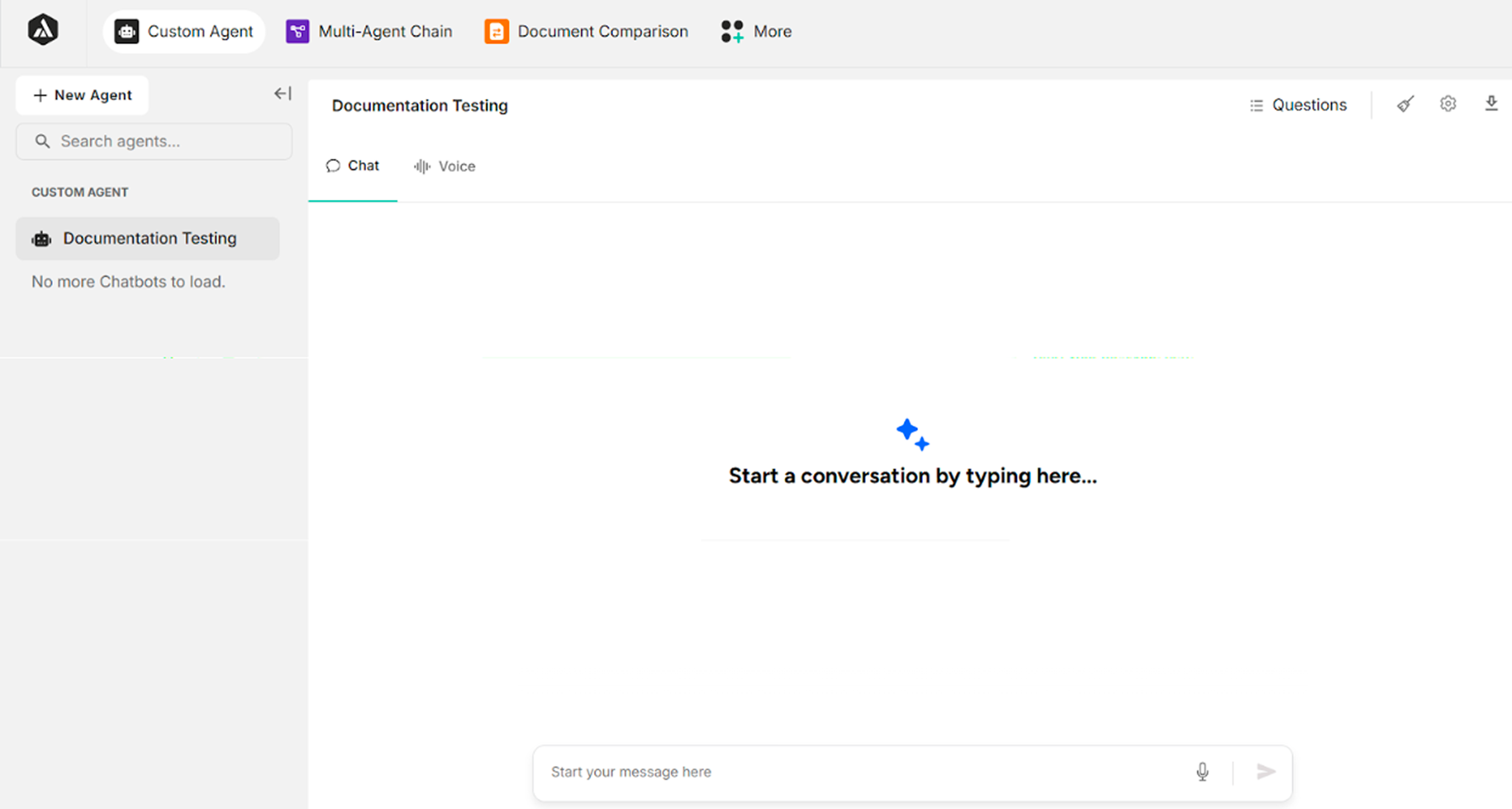
3.1. How to Use an Unstructured Agent
Chat Panel
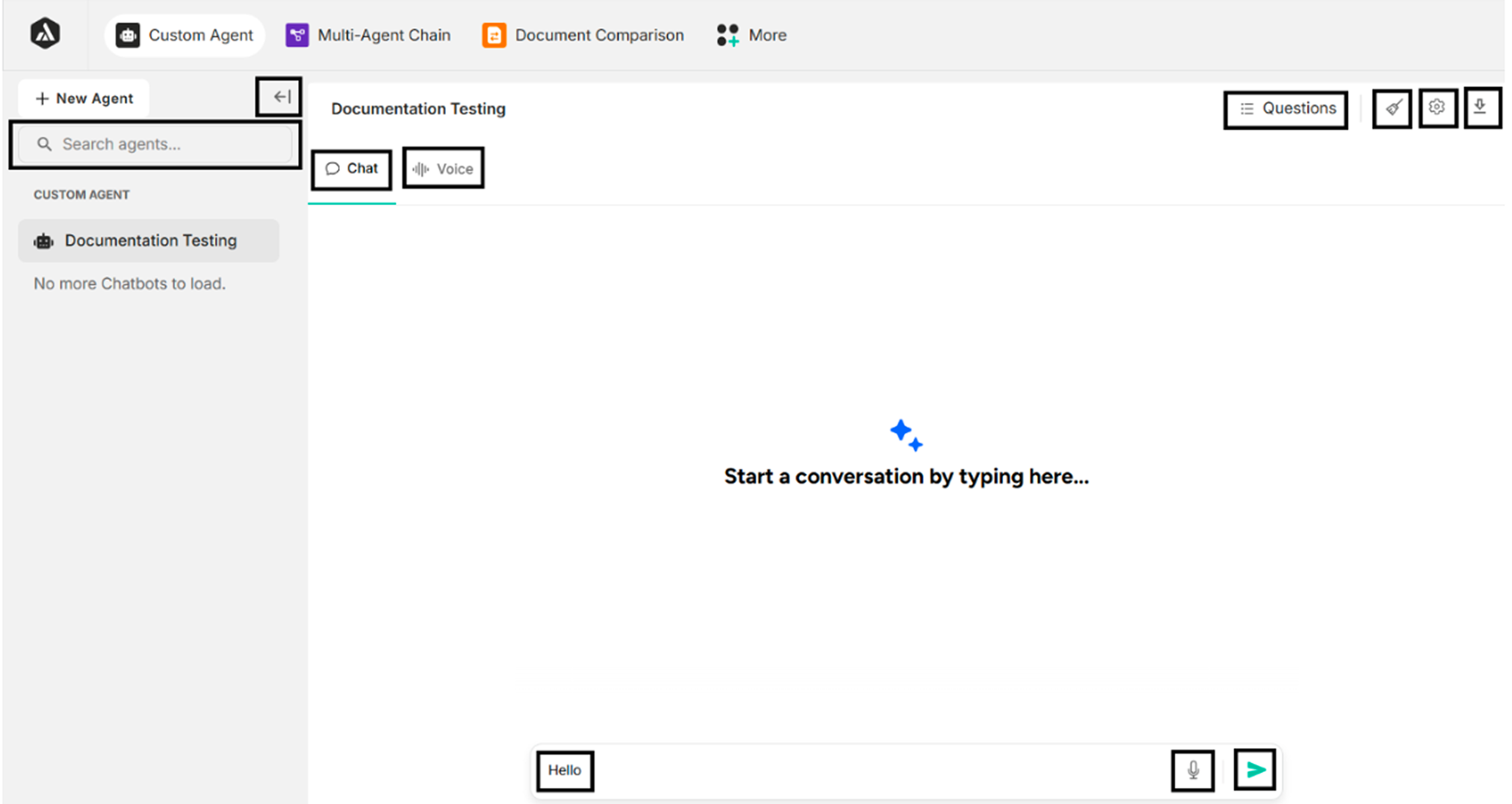
| Feature | Description |
|---|---|
| Questions | Display the list of asked questions related to the agent, enabling quick selection and check during conversations. |
| Clear Chat History Icon | Clear the chat logs displayed in the chat panel. |
| Setting Icon | Allow users to configure and manage agent settings, including tools, prompts, and behavior associated with the selected agent. |
| Export or Download Button | Export or download the current chat session, conversation history, or relevant documentation/data logs in a specific file format (CSV, XLSX or PDF) |
| Chat | The chat panel for text-based conversations |
| Voice | The real-time voice panel to speak and listen to the agent instantly with live audio interaction. |
| Message Input (Example: "Hello") | Enter messages by the user in the message input field to make a conversation with the agent. |
| Send Button | Submit the entered message or query to the agent to initiate or continue the conversation. |
| Microphone Icon | Input audio for the "Speech to Text" mode. |
| Search Bar | Used to filter or search for specific pre-configured AI agents within the sidebar list. |
| Minimize Sidebar Button | Hides or shows the left-hand navigation panel (agent list) to maximize screen space for the chat interface. |